


Touch panel
By touching the monitor, you can intuitively perform operations such as focusing on the shooting screen and operating the playback screen. You can also use swipe gestures to control whether the Fn menu, touch icons, etc. are displayed or hidden.
Touch operations during shooting
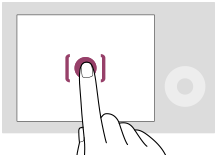
Touch the monitor to specify where to focus (Touch Focus).
Touch a subject on the monitor to use the touch tracking function (Touch Tracking).
You can also focus on a subject and shoot images simply by touching the subject on the screen (Touch Shutter).
When you touch the subject on the screen, the camera adjusts the brightness automatically according to the subject (Touch AE). [Touch AE] can also be used in combination with [Touch Focus], [Touch Tracking], or [Touch Shutter].
For information on how to switch the function activated by touch operation, refer to “ Touch Panel Settings .”Touch operations during playback
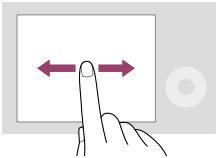
During single-image playback, swipe the screen to the left or right to move to the previous or next image.
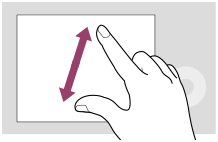
During single-image playback, you can enlarge or reduce the displayed image by moving apart or bringing together two fingers on the screen (pinch-out/pinch-in).
- You can also double-tap the monitor to enlarge a still image or exit the enlarged image.
- During movie playback, you can start or pause playback using touch operations.
Swipe to control the screen
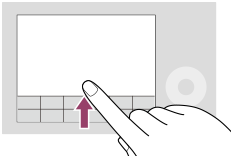
You can open the function menu by swiping upward quickly on the shooting screen or playback screen.
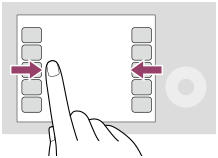
You can show and hide the icons for functions displayed on the left and right sides of the screen by swiping left and right quickly on the shooting screen.
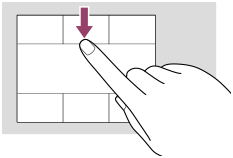
You can open the home screen by swiping downward quickly on the shooting screen. (only when shooting movies)
Hint
- You can also operate the camera by touching the guides displayed on the bottom of the screen (Except when in the [Intelligent Auto] mode).
- You can set whether to enable touch operations and configure detailed settings under [Touch Panel Settings].