


DISP (Display Setting) button
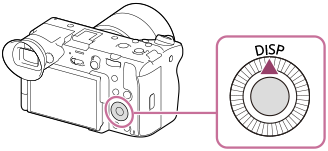
By pressing the DISP (Display Setting) button, you can change the content displayed on the screen during shooting and playback. The display switches each time the DISP button is pressed. The viewfinder display and the monitor display for shooting can be set separately.
Hint
- The monitor can be turned off with the DISP button. Add a check mark to [Monitor Off] under MENU →
 (Setup) → [Operation Customize] → [DISP (Screen Disp) Set] → [Monitor].
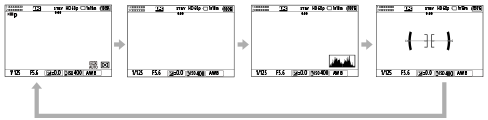
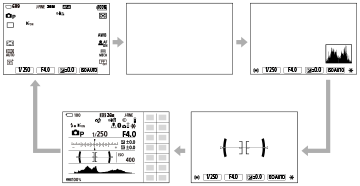
During shooting (Monitor)
Display All Info. → No Disp. Info. → Histogram → Level →
 For viewfinder → Display All Info.
When shooting movies:
When shooting still images:
During shooting (Viewfinder)
Level → No Disp. Info. → Histogram → Level
When shooting movies:
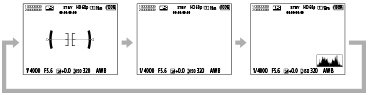
When shooting still images:
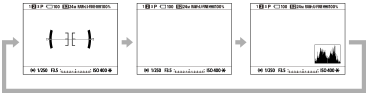
- To switch the information displayed on the viewfinder, press the DISP button while looking into the viewfinder.
During playback (Monitor/Viewfinder)
Display Info. → Histogram → No Disp. Info. → Display Info.

- If the image has an overexposed or underexposed area, the corresponding section will blink on the histogram display (overexposed/underexposed warning).
- The settings for playback are also applied in [Auto Review].
Hint
- If [Vertical Display] is set to [On], the information display will rotate vertically to fit the orientation of the camera when you hold the camera vertically in the shooting mode.
Note
- The displayed contents and their position shown in the illustration are just a guideline, and may differ from the actual display.
- The following are not displayed in the default settings.
- Monitor Off
- Display All Info. (when using the viewfinder)
- In the movie recording modes, [For viewfinder] cannot be displayed. If the monitor display is set to [For viewfinder], the display will switch to all information when movie shooting starts.
- If the camera is connected to a TV, monitor, etc. via an HDMI cable, the playback screen will not be displayed in the viewfinder.
TP1001659803