


Pairing and connecting with a computer (Windows® 11)
The operating procedure to register the device that you wish to connect to is called “pairing”. First, pair a device to use it with the headset for the first time.
Before starting the operating procedure, check the following.
- Your computer has a Bluetooth function that supports music playback connections (A2DP).
- The computer is placed within 1 m (3.2 ft) of the headset.
- The headset is charged sufficiently.
- The operating instructions for the computer are in hand.
- Depending on the computer you are using, the built-in Bluetooth adaptor may need to be turned on. In the following cases, refer to the operating instructions supplied with your computer.
- You do not know how to turn on the Bluetooth adaptor.
- You want to know if your computer has a built-in Bluetooth adaptor.
-
To use the Swift Pair function, click the following button, items, and switch in order to turn on the Swift Pair function.
[Start] button - [Settings] - [Bluetooth & devices] - [Devices] - [Show notifications to connect using Swift Pair]
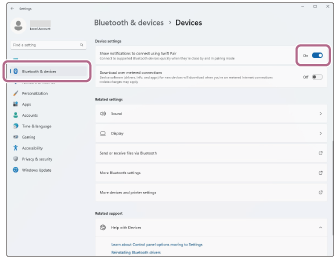
-
Check the status of the headset.
The headset enters pairing mode automatically in the following cases. Proceed to step 2.
- When you pair the headset with a device for the first time after purchasing the headset
- After initializing the headset and clearing all pairing information
When you want to pair an additional device, if the headset already has pairing information for other devices, proceed to step 3.
-
Remove both headset units from the charging case.
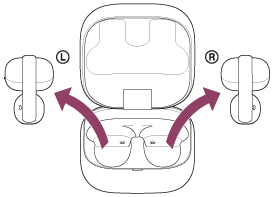
The headset turns on automatically.
The headset enters pairing mode automatically.
You will hear a notification sound and the voice guidance say “Pairing” from the headset units at the same time.
Proceed to step 4.
-
Set the headset units into the charging case. With the charging case lid open, press and hold the pairing button on the back of the charging case for about 5 seconds or more.
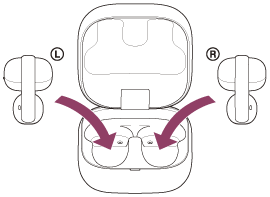
Hint
- Leave the charging case lid open. The headset does not enter pairing mode with the charging case lid closed.
The indicator on the charging case repeatedly flashes in blue twice in a row and the headset goes into pairing mode.
You can remove the headset from the charging case after entering pairing mode.
-
Wake the computer up if the computer is in standby (sleep) or hibernation mode.
To use the Swift Pair function, proceed to step 5.
To connect without using the Swift Pair function, proceed to step 6.
-
Select [Connect] from the pop-up menu displayed on your computer screen.
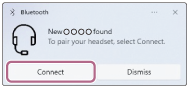
The headset and computer are paired and connected with each other.
You will hear a notification sound indicating that the connection is established from the headset.
-
On your computer screen, click the [Start] button, then [Settings].
-
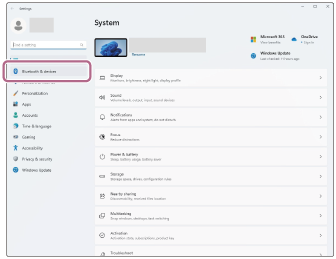
Click [Bluetooth & devices].
-
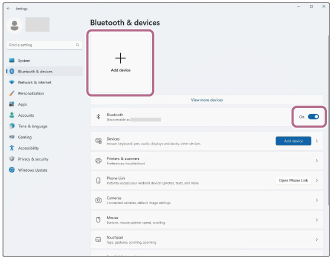
Click the [Bluetooth] switch to turn on the Bluetooth function. Click [Add device].
-
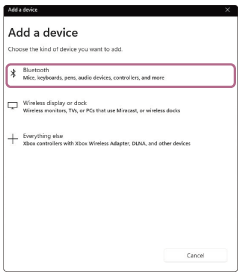
Click [Bluetooth].
-
Click [LinkBuds Clip].
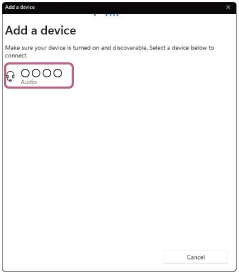
If Passkey (*) input is required, input “0000”.
The headset and computer are paired and connected with each other.
When the headset is placed in the charging case, the indicator on the charging case flashes in blue 10 times.
When both headset units are being removed from the charging case, you will hear a notification sound indicating that the connection is established from both headset units at the same time. When only one headset unit is removed from the charging case, you will hear a notification sound from the headset unit that has been removed.
If they are not connected, see “Connecting to a paired computer (Windows 11)”.
If [LinkBuds Clip] does not appear on your computer screen, try again from step 6.
(*) A Passkey may be called “Passcode”, “PIN code”, “PIN number”, or “Password”.
Hint
- The above operating procedure is an example. For more details, refer to the operating instructions supplied with the computer.
- To delete all Bluetooth pairing information, see “Initializing the headset to restore factory settings”.
Note
- If pairing is not established within 5 minutes, pairing mode is canceled. In this case, start the operating procedure again from step 2 or step 3.
- Once Bluetooth devices are paired, there is no need to pair them again, except in the following cases:
- If pairing information is deleted, such as after a repair
- When a 9th device is paired
The headset can be paired with up to 8 devices. If you pair a 9th device, the pairing information with the oldest connection date and time will be overwritten with the information for the new device. - When the pairing information for the headset has been deleted from the connected Bluetooth device
- When the headset is initialized
All of the pairing information will be deleted. In this case, delete the pairing information for the headset from the connected device and then pair them again.
- The headset can be paired with multiple devices, but can only play music from 1 paired device at a time.