


Importing still images/movies to a computer
You can import still images and movies you have shot to a computer without using a computer application.
How to import images to a computer
There are two methods of importing still images/movies, as follows.
How to browse still images/movies on a computer
You can directly browse still images/movies on the memory card using Explorer (Windows) or Finder (Mac).
To import images using a USB cable
-
Connect the camera to a computer.
Connect the camera to a computer using a USB cable. For details, refer to “Connecting the camera to a computer.”
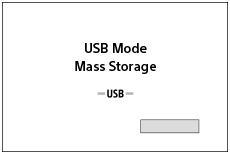
When the connection is successful, the following screen will be displayed on the camera.
-
Perform operations on the computer.
Browse the storage of the camera using Explorer (Windows) or Finder (Mac).
Open the image folder in the storage of the camera, select the images, and then copy them to your computer.
Example of the folder structure
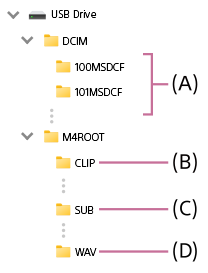
(A) Still images are saved in each folder within the “DCIM” folder.
(B) Movies are saved in the “CLIP” folder within the “M4ROOT” folder.
(C) Proxy movies are saved in the “SUB” folder within the “M4ROOT” folder.
(D) Audio files in the WAV format are saved in the “WAV” folder within the “M4ROOT” folder. *1 *2
*1 When an accessory that supports audio recording in the WAV format is attached to the Multi Interface Shoe
*2 When the camera’s system software (firmware) version is Ver.2.00 or later
To import images from a memory card
-
Eject the memory card from the camera.
Open the memory card cover on the camera and eject the memory card.
-
Read the memory card on your computer.
Insert the memory card into a commercially available card reader and connect the card reader to your computer.
When you are using an SD card and if your computer has an SD card slot, insert the SD card directly into the slot.
-
Perform operations on the computer.
Browse the memory card drive using Explorer (Windows) or Finder (Mac).
Open the image folder on the memory card drive, select the images, and then copy them to your computer.
For details on the folder structure, see step 2 of “To import images using a USB cable.”
Hint
- To import images to the computer via a wireless connection, use the following methods.
- Upload images to the cloud service using a smartphone application and then import them to the computer.
- Import images to the computer using the FTP transfer function.
Note
- Do not edit or otherwise process movie files/folders from the connected computer. Movie files may be damaged or become unplayable. Do not delete movies on the memory card from the computer. Sony is not held liable for consequences resulting from such operations via the computer.
- If you delete images or perform other operations from the connected computer, the image database file may become inconsistent. In this case, repair the image database file.