


Connecting with an Android smartphone using LE Audio
When connection is established using LE Audio, you can enjoy music from an Android smartphone with less sound delay.
Set up with the “Sound Connect” app.
Devices supporting LE Audio
The Android smartphone must support LE Audio.
For the latest information on the compatible devices, refer to the support website.
About LE Audio
- It supports the “LC3” codec.
- When connected via LE Audio, certain headset features may not work. For details, see “Using the “Sound Connect” app”.
-
Connect the headset to the Android smartphone via Bluetooth connection.
-
Launch the “Sound Connect” app and select the following items to switch the Bluetooth connection method from Classic Audio to LE Audio.
[BLUETOOTH CONNECTION QUALITY] - [Low latency]If [BLUETOOTH CONNECTION QUALITY] is not displayed, select the following items.
[Headphone connection setting] - [LE Audio Priority]
-
Delete the pairing information for the headset on your Android smartphone.
-
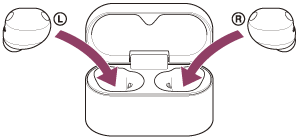
Set the headset units into the charging case.
-
With the charging case lid open, press and hold the pairing button on the back of the charging case for about 5 seconds or more.
Hint
- Leave the charging case lid open. The headset does not enter pairing mode with the charging case lid closed.
The indicator on the charging case repeatedly flashes in blue twice in a row and the headset goes into pairing mode.
You can remove the headset from the charging case after entering pairing mode.
When you are wearing the headset units, you will hear a notification sound from both headset units at the same time. You will hear the voice guidance say, “Pairing”. When you are wearing only one headset unit, you will hear the notification sound and voice guidance from the headset unit you are wearing.
-
On your Android smartphone screen, select the following items to open the Bluetooth settings screen.
[Settings] - [Device connection] -
Select [Pair new device].
-
Select [Available devices] - [WF-1000XM6].
The headset and smartphone are paired and connected with each other.
When the headset is placed in the charging case, the indicator on the charging case flashes in blue 10 times.
When you are wearing the headset units, you will hear a notification sound indicating that the connection is established from both headset units at the same time. When you are wearing only one headset unit, you will hear the notification sound from the headset unit you are wearing.
-
Touch the setting icon displayed next to the connected [WF-1000XM6].
-
Check that [LE Audio] is turned on.
If it is turned off, touch the switch to turn on [LE Audio].
-
On the “Sound Connect” app screen, check that [LE Audio] is displayed under the headset name.
To finish LE Audio
Launch the “Sound Connect” app and select the following items.
- For Xperia 1 IV/5 IV
[Headphone connection setting] - [Classic Audio only (conventional connection method)] - For devices other than Xperia 1 IV/5 IV
[BLUETOOTH CONNECTION QUALITY] - [Prioritize Sound Quality] / [Prioritize Stable Connection]
Hint
- The above operating procedure is an example. For more details, refer to the operating instructions supplied with the Android smartphone.
- If the sound stutters or the connection is unstable, select [Prioritize Stable Connection] from [BLUETOOTH CONNECTION QUALITY].
-
To connect using GMAP (Gaming Audio Profile)
- GMAP is one of the LE Audio profiles that provides ultra-low latency that is ideal for gaming.
When connected to LE Audio, if you launch a gaming app that supports GMAP, the profile will automatically switch.
To connect using GMAP, the smartphone needs to be compatible with GMAP. For details about compatibility, refer to the operating instructions supplied with your smartphone. - Some sound quality settings will be disabled if you make a call while connected using GMAP.
- GMAP is one of the LE Audio profiles that provides ultra-low latency that is ideal for gaming.