


Using the voice assist function (Siri)
By linking with Siri on your iPhone, you can operate the iPhone by voice while wearing the headset.
-
Activate Siri.
On an iPhone, select [Settings] - [Siri & Search].
Enable [Press Home for Siri] and [Allow Siri When Locked].The above operating procedure is an example. For details, refer to the operating instructions supplied with the iPhone.
For details on Siri, refer to the operating instructions or support website of the iPhone.
-
Put the headset units on your ears and connect the headset to the iPhone via a Bluetooth connection.
-
When the iPhone is in standby or playing music, hold your finger to the touch sensor on the right-side headset unit for about 2 seconds or more.

Siri is activated.
-
Talk to Siri through the headset’s microphones (A).
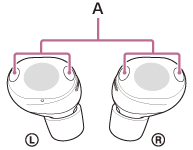
For details on the apps which work with Siri, refer to the operating instructions for the iPhone.
After activating Siri, Siri will be deactivated if no voice input is detected for a certain period of time.
Note
- The voice assist function (Siri) and Google Gemini cannot be assigned to the headset at the same time.
- The voice assist function (Siri) and Tencent Xiaowei/QQ Music cannot be assigned to the headset at the same time.
- Siri cannot be activated when you say “Hey Siri” even when the iPhone’s “Hey Siri” setting is enabled.
- In order to make it easier for you to hear your own voice while using the voice assist function, the microphones work to capture ambient sounds (Sidetone function). In this case, ambient sounds or the sounds of the headset operating procedure may be heard through the headset, but this is not a malfunction. If your voice is too loud or the sounds in your surroundings are bothering you, turn off [Capture Voice During a Phone Call] on the “Sound Connect” app.
TP1002090558