


Charging
The mouse contains a built-in lithium-ion rechargeable battery. Use the supplied USB Type-C cable to charge the mouse before use.
Hint
- When the mouse is used as a wired mouse, the mouse can be used while charging.
-
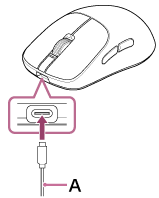
Connect the supplied USB Type-C cable (A) to the USB Type-C port on the mouse.
-
Connect the USB Type-C cable that is connected to the mouse to a USB port on a computer.
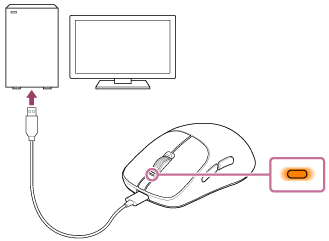
Charging for the mouse starts. The status indicator on the mouse lights up in orange.
The status indicator turns off automatically after charging is complete.
-
Remove the USB Type-C cable.
About the charging time
The required time for fully charging the mouse is about 1.5 hours(*).
(*)Time required for charging the empty battery to its full capacity. The charging time may differ depending on the conditions of use.
Recommended environment for battery charge using USB
-
Personal computer
Computer with USB ports as standard equipment
- We do not guarantee that the operating procedures will work on all computers.
- The operating procedures on a self-made computer are not guaranteed.
-
USB AC adaptor
A commercially available USB AC adaptor capable of supplying an output current of 0.5 A (500 mA) or more
Power saving
- When the mouse is used as a wireless mouse, it automatically enters sleep mode after about 5 minutes of inactivity to save the battery. When the mouse is moved, clicked, or an update is started, it exits the sleep mode automatically.
- When the mouse is connected wirelessly and will not be used for a while, you can save battery power by pressing the power button on the mouse for about 2 seconds to turn off the mouse .
Hint
- When the mouse is connected to a computer with the USB Type-C cable, it can be charged while being used as a wired mouse.
- You can also charge the mouse by using a commercially available USB AC adaptor.
Note
- Be sure to use the supplied USB Type-C cable. Charging may not be successful.
- Charging may not be successful depending on the type of USB AC adaptor.
- The mouse cannot be charged when a computer goes into standby, sleep, or hibernation mode. In this case, start charging once again after changing the computer settings.
- If the mouse is not used for a long time, the rechargeable battery usage hours may be reduced. The battery hours will improve after several charge and discharge cycles. If you store the mouse for a long time, charge the battery once every 6 months to avoid over-discharge.
- If the mouse is not used for a long time, it may take longer to charge the battery.
- If there is a problem with the rechargeable battery of the mouse, the status indicator on the mouse flashes in orange during charging.
It is recommended to charge in a place with an ambient temperature between 5 °C and 35 °C (41 °F - 95 °F). Efficient charging may not be possible beyond this range.
If the problem persists, consult the Sony support contact or your nearest Sony dealer. - If the mouse is not used for a long time, the status indicator on the mouse may not immediately light up in orange when charging. Wait a moment until the status indicator lights up in orange.
- If the usage hours of the built-in rechargeable battery decrease significantly, the battery should be replaced. Consult the Sony support contact or your nearest Sony dealer.
- Avoid exposure to extreme temperature changes, direct sunlight, moisture, sand, dust, and electrical shock. Never leave the mouse in a parked vehicle.
- When connecting the mouse or wireless dongle to a computer, use only the supplied USB Type-C cable, and be sure to directly connect them. Charging may not be properly completed when the mouse is connected through a USB hub.
- The mouse may become warm during charging or for a while after charging. This is not a malfunction.