


Using the External monitor app
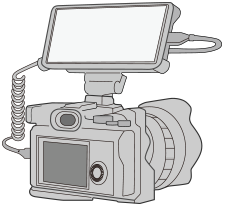
By connecting to an external camera such as Sony Alpha cameras, External monitor app can help you in the following situations:
- Take advantage of the high-definition display of your Xperia by using it as a camera monitor.
- Ensure your subject is in focus by pinching in or out on the smartphone screen to zoom in or out.
- Find the best lighting in various shooting environments using the Brightness adjustment function.
- Find and tap
 (External monitor icon) to launch the External monitor app.If (External monitor icon) is not in the app drawer, find and tap [Settings] > [Device connection] > [Connection preferences], and then tap the [External monitor] switch.
 -
Connect a video device.
- Connect a video device that supports USB Video Class (UVC) output to your Xperia via a USB Type-C cable.
- Connect a video device that supports HDMI output to your Xperia using an HDMI cable together with an HDMI-UVC conversion adapter.
External monitor overview
-
 (Screen lock icon): Tap to lock the screen and prevent accidental operations.
 -
 (Brightness adjustment icon): Tap to adjust the brightness level with the slider.
 -
 (Grid line icon): Tap to display and select a type of grid line.
 -
 (Frame line icon): Tap to display and select from among various aspect ratios.
 -
 (Rotate icon): Tap to rotate the screen 180 degrees.
 -
 (Settings icon): Tap to adjust more detailed settings.
