


Configuring Licenses
-
Select [Settings] > [Connection Manager] tab > [License] from the global header of the connection manager.
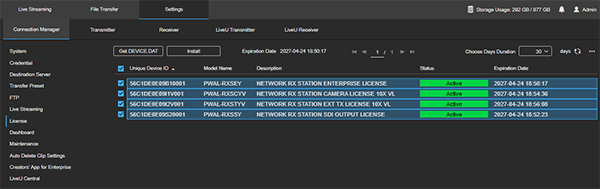
-
Click the
 (Menu) button in the upper right of the screen and select [Create Device Unique ID].
 -
Enter the number of licenses in the [Create Device Unique ID] dialog and click [Save].
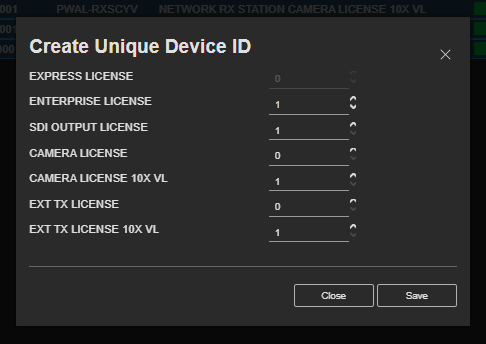
The licenses are displayed in the license list.
-
Place a check mark beside the license you want to activate and click the [Get DEVICE.DAT] button.
A “PWA-RXS_DEVICE_DAT_(date).zip” file is downloaded to the Downloads folder of the PC running the web browser.
-
Uncompress the zip file.
When uncompressed, a “DEVICE.DAT” file is extracted. DEVICE.DAT files are used to acquire licenses.
TP1002494888