


Structure of the Live Streaming Screen
The Live Streaming screen displays the devices that perform live streaming and controls for starting/stopping live streaming.
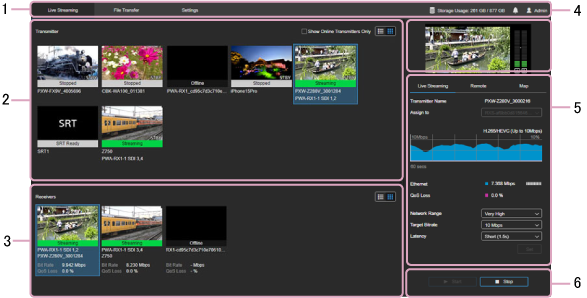
1. Global header
Click the tabs and icons to move between screens.
- Live Streaming: Displays the Live Streaming screen.
- File Transfer: Displays the File Transfer screen.
- Settings: Displays the Settings screen.
-
 (Used storage capacity): Displays the used storage capacity.
 -
 (Warning): Warns you that the expiration date for the SSL/TLS certificate for connecting to the admin screen of the connection manager is approaching. Update the SSL/TLS certificate as described in the “System Integration Guide.”
 -
 (Notification): Displays a notificattion about the license expiration date.
 -
 (User name): Use the pull-down menu to display the online Help, view the terms of service, or sign out.
2. Transmitter area
Displays the live streaming output transmitters in thumbnail view or list view.
In thumbnail view, the thumbnails and the following information are displayed. The transmitting device recording status ([REC] for recording, [STBY] for standby) is also displayed on the thumbnails.
- Live streaming status: Streaming, Unstable, Stopped, Reserved, Disabled, Offline, SRT Ready
- Transmitting device name: Camera model name or SRT Caller name
- Receiving device name: RXS-(serial No.)
In list view, the names of transmitting devices and names of receiving devices are displayed.
- [Show Online Transmitters Only] checkbox: Displays online (including SRT Ready) transmitters only.
-
 (List view): Displays the transmitters in list view.
 -
 (Grid view): Displays the transmitters in thumbnail view.
3. Receiver area
Displays the live streaming receiving devices in thumbnail view or list view.
In thumbnail view, the thumbnails and the following information are displayed. The  (File output) icon is displayed on the thumbnails when live streaming video is saved to a file on the PWA-RXS side. The
  (RTMP output) icon is displayed on the thumbnails when RTMP output is enabled.
- Live streaming status: Streaming, Unstable, Stopped, Reserved, Disabled, Offline, SRT Ready
- Transmitting device name: Camera model name or SRT Caller name
- Receiving device name: RXS-(serial No.)
- Bit rate
- Live streaming loss rate
In list view, the names of transmitting devices and names of receiving devices are displayed.
-
(List view): Displays the devices in list view.
-
(Grid view): Displays the devices in thumbnail view.
4. Preview area
Displays a preview of the live streaming content from the device selected in the transmitter area.
Note
- There is short delay between the display of the preview display and the SDI output.
- The preview display refresh time differs from that of the SDI output.
5. Settings area
Configures live streaming settings for the selected transmitter.
[Live Streaming] tab
- Transmitter Name: Displays the name of the live streaming device.
- Assign to: Selects the PWA-RXS and SDI port streaming output destination. Cannot be modified while live streaming is in progress.
- Graph: Displays the variation in the bit rate and live streaming loss rate, and the codec.
- Carrier: Displays the name of the network carrier used for communication with the camera and the bit rate. The information displayed varies depending on the connected camera and camera status.
- QoS Loss: Displays the live streaming loss rate.
- Network Range: Selects the live streaming resolution and maximum bit rate. [Very High], [High], [Middle], or [Low] can be selected. The values available for selection vary depending on the connected camera and camera status.
- Target Bitrate: Selects the target bit rate when [Live Streaming] > [Use Target Bitrate Setting] is selected on the [Connection Manager] tab of the Settings screen. The bit rate options available for selection vary according to the [Network Range] setting.
- Latency: Selects the live streaming delay time. [Very Short(0.7s)], [Very Short(1s)], [Short(1.5s)], [Middle(3s)], [Long(5s)], or [Very Long(10s)] can be selected (the displayed delay time is an estimate. The actual delay time may vary due to the added network delay).
- [Set] button: Applies changes to the [Network Range], [Target Bitrate], and [Latency] settings.
Note
- When using SRT, [Network Range], [Target Bitrate], and [Latency] cannot be configured. The receiver settings on the Settings screen and the settings on the SRT caller side are used.
[Remote] tab
Note
- Each function is enabled only for supported cameras.
- The displayed buttons, switches, and control panels vary depending on the connected camera.
- [Camera Control] switch: Enables remote control of the camera.
- [Proxy Rec] switch: Sets whether to record a proxy file on the camera.
[Map] tab
Note
- This function is enabled only for supported cameras.
- [Show Map] button: Displays the current location of the camera on a map.
6. Live streaming control area
Controls live streaming operation.
- [Start] button: Starts live streaming. When using SRT, the receiver goes online in SRT listener mode. Follow the instructions on the screen to start live streaming from the SRT caller.
- [Stop] button: Stops live streaming.