


Connecting your device to USB devices
You can set the USB preferences according to the computer or USB device connected to your device.
You can use a USB host adapter to connect your device to USB devices, such as USB mass storage devices, headphones, game controllers, USB keyboards, and USB mice.
-
Connect your device to the USB device using a USB cable.
-
Swipe down from the top of the screen to open the notification panel, and then tap the USB connection setting notification.
-
Tap the following, and then select an option.
[Tap for more options.]
Hint
-
You can also set the USB preferences by finding and tapping as follows.
[Settings] > [Device connection] > [USB]
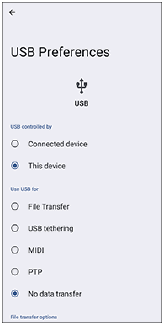
USB Preferences
-
USB controlled by: You can choose which device controls the other, your device, or the USB-connected device.
-
Use USB for: You can choose the purpose of the USB connection.
- File Transfer: You can manage files or update the device software. This option is used with Microsoft® Windows® computers. Charging is enabled by default.
- USB tethering: Your device can function as a tethering device.
- MIDI: Your device can function as the MIDI input for musical instrument applications.
- PTP: Your device is recognized as a camera. You can only transfer photos and videos.
-
No data transfer: Just charge your device with the following setting.
[USB controlled by]: [This device]
You can use your device as a power supply and charge the other connected device with the following setting.
[USB controlled by]: [Connected device]
-
File transfer options
- Convert videos to AVC: Videos are converted to AVC and transferred to the connected device.
Note
- Sony does not guarantee that all USB devices are supported by your device.
- This device has a capless USB port. If your device gets exposed to water, ensure that the port is completely dry before connecting a USB cable.