Taking a screenshot
-
Press the volume down button and power button at the same time.
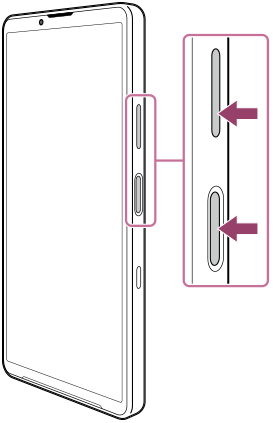
To take a screenshot from the Quick settings panel
-
Swipe down twice from the top of the screen.
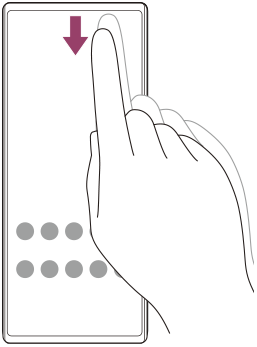
-
Tap the following.
 (Screenshot)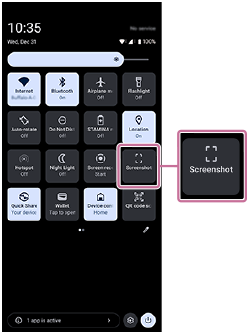
Hint
-
You can take a screenshot by using the Dashboard. To display the Dashboard, flick the Side sense bar inward toward the screen or find and tap the following icon.
 (Dashboard)
On the Dashboard, tap the following.
[Screenshot]
-
You can assign taking screenshots to a gesture on the Side sense bar by performing the following procedure.
[Settings] > [Operation & View] > [Side sense] > [Gesture function assignments] > [Flick inward towards the screen], [Flick up], or [Flick down] > [Take screenshot]
-
You can assign the action of taking a screenshot to pressing the shutter button. Find and tap as follows, and then tap the switch.
[Settings] > [System] > [Gestures] > [Shutter button] > [Take a screenshot]
To take a scrolling screenshot
You can take a screenshot of a screen that is scrollable.
Note
- Scrolling screenshots are available if the app supports the feature.
-
Press the volume down button and power button at the same time.
-
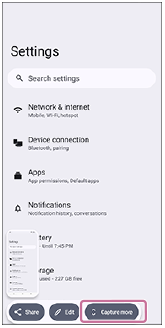
Tap the following.
[Capture more]
-
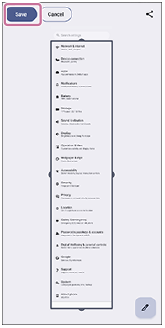
Drag the line to adjust the screenshot area, and then tap the following.
[Save]
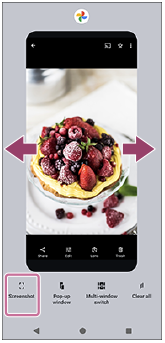
To take a screenshot of a recently used app
-
Tap the following button in the navigation bar.
 (Overview)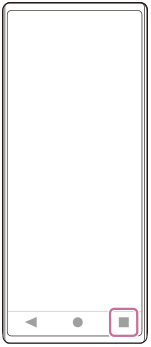
-
Swipe left or right to select the app you want to take a screenshot of, and then tap the following.
[Screenshot]