


Turning your device on or off
The first time you start your device, a setup guide helps you to configure basic settings, personalize your device, and sign in to your accounts, for example a Google account.
Turning on your device
-
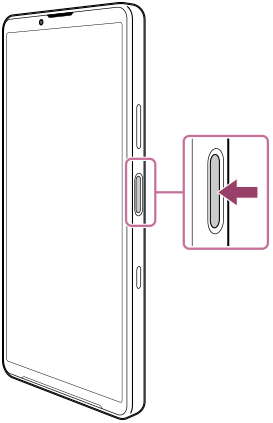
Long press the power button until your device vibrates.
The lock screen is displayed when start-up is completed.
Turning off your device
You can turn off your device using the buttons or from the Quick settings panel.
To turn off your device using the buttons
-
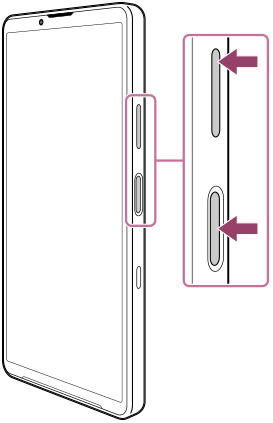
Press the volume up button and power button at the same time.
-
In the menu that opens, tap the following.
[Power off]
To turn off your device from the Quick settings panel
-
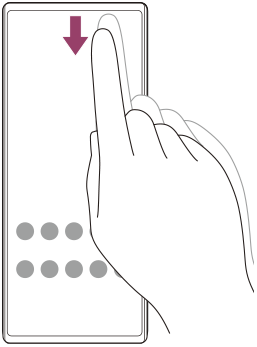
Swipe down twice from the top of the screen.
-
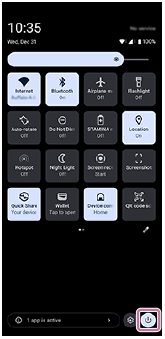
Tap the following button.
 (Power menu)
-
In the menu that opens, tap the following.
[Power off]
Hint
- Long-pressing the power button is set to launch the Gemini app by default in some countries/regions.
To turn off the device by long-pressing the power button, find and tap as follows.
[Settings] > [System] > [Gestures]
> [Press & hold power button]
Then, tap the following.
[Power menu]