


Pop-up window mode
You can display another app in a small window overlaid on top of an app running in the full-screen mode. You can also display a third app in the pop-up window while viewing two apps using the Split-screen mode.
-
Tap the following button in the navigation bar.
 (Overview)
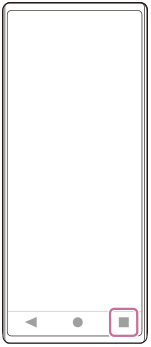
-
Swipe left or right to select the app that you want to display in a small window, and then tap the following.
[Pop-up window]
-
Swipe left or right to select the app that you want to display in the full-screen, and then tap it.

Pop-up window overview

-
Return to the previous screen.
-
Drag to move the window.
Double-tap to maximize the window. Double-tap again to return to the previous window size.
-
Tap to minimize the window.
The pop-up window will disappear but is not closed.
To redisplay the pop-up window, tap the following button in the navigation bar, swipe left or right to find the app, and then tap it.
(Overview) -
Tap to display the app in the full-screen mode.
The pop-up window mode will close, and the app will be displayed in the full-screen mode.
-
Tap to close the window.
Hint
- Drag any corner of the pop-up window to resize the window.
- You can display two or more pop-up windows at the same time.
-
For details on the pop-up window, find and tap as follows.
[Settings] > [System] > [Gestures] > [Side sense] > [View Side sense usage guide] > [More about pop-up windows]
TP1001107916