


Recording videos in slow motion
- Launch the Camera app.
 (Camera)
 -
Select the mode.
[Slow] -
Point the camera at the subject.
-
Zoom in or out on the image.
Slide the angle button to the left and right (in the portrait orientation) or up and down (in the landscape orientation).
You can also zoom in or out on the image by pinching in or out on the viewfinder or by pressing the zoom button.
-
Touch the subject on which you would like to focus in the viewfinder.
-
The focus frame will appear.
The camera will focus on the touched subject.
To cancel focusing, tap the focus frame.
-
The color adjustment slider and the brightness adjustment slider will appear.
 : Color adjustment slider
  : Brightness adjustment slider
Drag the sliders to adjust the color and brightness.
-
-
Tap the following button on the screen or press the device shutter button to record a video in slow motion.
 (Start video recording)
-
Tap the following button on the screen or press the device shutter button to stop recording.
 (Stop video recording)
-
Tap the thumbnail to open the video.
-
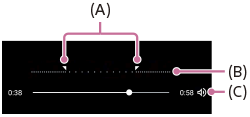
Drag the handles on the slow-motion timeline to the positions where you want the slow-motion effect to appear.
(A): Handles
(B): Slow-motion timeline
(C): Tap to turn the sound on or off.
To change the camera settings
-
Tap the icon to find and change more frequently used settings.
 (Settings)
-
Light
Off / On
The current light status is displayed in the top left of the screen. You can turn the light on or off by tapping the icon.
-
-
Tap the button to change more detailed settings.
[Menu]
Hint
-
For more information about the Google Photos app, go to the following URL.