


Listening to music
Use the Music app to listen to your favorite music.
Music player overview
-
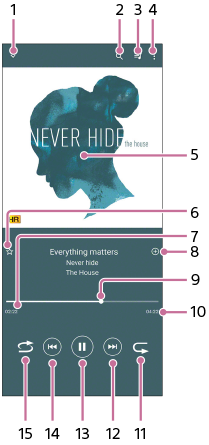
Tap to minimize the full-screen player.
-
Tap to search all songs saved to your device.
-
Tap to view the play queue.
-
Tap to view more options.
-
Album art (if available)
-
Tap to add or remove a song as a favorite.
-
Elapsed time of current song
-
Tap to add a song to a playlist.
-
Progress indicator
Drag or tap along the line to fast-forward or rewind.
-
Length of current song
-
Tap to repeat the current song or all songs in the play queue.
-
Tap to go to the next song, touch and hold to fast-forward the current song.
-
Tap to play or pause a song.
-
Tap to go to the beginning of the current song, touch and hold to rewind the current song.
-
Tap to shuffle songs in the play queue.
Music home screen
-
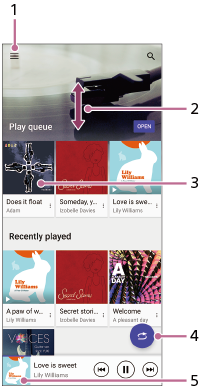
Tap to open the Music menu.
-
Tap to scroll up or down to view content.
-
Tap to start playing a song in the play queue.
-
Tap to play all songs in shuffle mode.
-
Tap to go to the music player screen.
Note
- You might not be able to play copyright-protected items.