


Changing the recording settings
Selecting the microphone directivity
Slide the MODE switch on the microphone to change the setting.
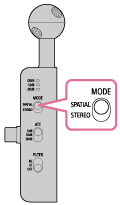
To record spatial audio, set this to “SPATIAL.” To record in stereo, set it to “STEREO.”
If you set it to “SPATIAL,” select a recording method by following “Selecting the recording method.”
Selecting the recording method
Select the recording method for recordings made in SPATIAL mode.
For details on the recording method, see “What you can do with ECM-AX10
.”
-
Connect the microphone to the smartphone.
See “Connecting the microphone.”
-
Launch the “Spatial Audio Video Tool” app.
-
Tap the setting icon (A).
 : Setting icon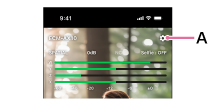
-
Tap [SPATIAL recording mode].
-
Select the recording method you want to use.
- [Ambisonics(4ch)] (AmbiX format)
- [Binaural] (2ch format)
Hint
- For [Binaural] and [Stereo], the levels are automatically adjusted and saved to prevent audio distortion.
Note
- Do not run “Spatial Audio Video Tool” and other recording apps at the same time.
Switching the setting to match the volume of the sound to be recorded
Slide the ATT switch on the microphone to change the setting.
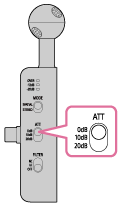
When recording loud sounds with minimal distortion, set this to “20dB.”
Hint
- The approximate guidelines are as follows.
- “0dB”: Standard usage
- “10dB”: For use in noisy environments
- “20dB”: For use in environments with high volume levels, such as live performances
Reducing noise
Slide the FILTER switch on the microphone to change the setting.
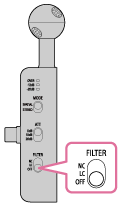
To eliminate background noise, set this to “NC.” To reduce unwanted noise such as wind noise, air conditioning noise, or vibration noise, set it to “LC.”
Hint
- When holding the microphone in your hand in a quiet environment, faint vibration noise may be recorded. If you are concerned about vibration noise, try setting the FILTER switch to “LC.”