


Editing
You can trim or adjust the screen orientation or volume of the videos recorded with the “Spatial Audio Video Tool” app.
-
Launch the “Spatial Audio Video Tool” app.
The recording screen appears.
-
Tap the project icon (A) to open the project screen.
 : Project icon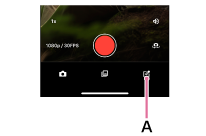
-
Tap the new project icon (B).
 : New project icon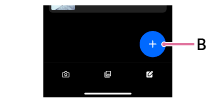
-
Select the screen orientation.
- [Landscape]: Landscape orientation (16:9) screen
- [Portrait]: Portrait orientation (9:16) screen
-
Select the video you want to edit, then tap [OK].
The editing screen for the selected video appears.
-
Edit by following the on-screen instructions.
To trim the beginning or end of a video
-
Tap the video you want to trim on the project screen.
The editing screen appears.
-
Tap the video timeline.
-
Slide the white frame at the beginning or end of the video to adjust its length.
When adjusting the start point, align the screenshot of the section you want to set as the start point with the 00:00 mark.
-
Tap the back icon at the upper-left corner of the screen.
 : Back icon
Your edits are saved.
Hint
- The selected video can be deleted by tapping the delete icon.
 : Delete icon
TP1002508811