


Exporting recorded data
The recorded data can be exported in formats for different purposes using the export function.
-
Launch the “Spatial Audio Video Tool” app.
The recording screen appears.
-
Tap the project icon (A) to open the project screen.
 : Project icon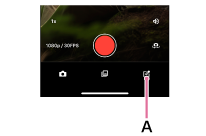
-
Tap the video (B) you want to export.
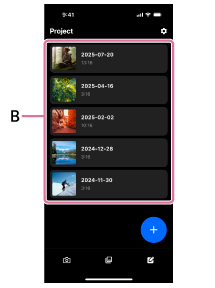
-
Tap [Export].
-
Check the file name and select the audio output format.
- [Eclipsa Audio]: Select this when creating Eclipsa Audio-compliant videos.
- [Binaural]: Select this when creating videos for a spatial audio format suitable for listening with headphones.
- [Stereo]: Select this when creating a video in two channels on the left and right in front.
- [Audio only: Ambisonics (4ch/WAV format)]: Select this when outputting only AmbiX-format audio data.
-
Tap [Export].
Hint
- Recorded data also can be exported on the playback screen.
- When exporting a video, the audio levels are automatically adjusted to prevent distortion before the file is saved.
If you export as [Audio only: Ambisonics (4ch/WAV format)], the audio is not compressed and retains the recorded volume.
TP1002508812