


Listening to the sound being recorded (monitoring recording)
The microphone input sound can be monitored using headphones that have been connected to the microphone.
-
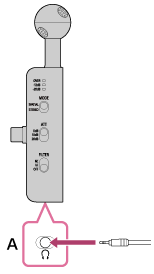
Connect the optional headphones to the headphone cable input jack (A).
-
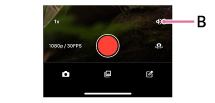
Adjust the monitoring volume (B) on the “Spatial Audio Video Tool” app.
Hint
- When the MODE switch on the microphone is set to “SPATIAL,” the Binaural audio can be monitored.
When the MODE switch on the microphone is set to “STEREO,” the stereo audio can be monitored.
Note
- If the volume is too loud while you are monitoring the recording, or if the headphones are too close to the microphone, the microphone may pick up the sound from the headphones, causing a beeping sound (feedback).
- We recommend using closed-back headphones with minimal sound leakage for monitoring recordings.
- Keep the recording screen displayed while using the recording monitor. If you switch to a screen other than the recording screen, the recording monitoring will stop.
- The microphone is not compatible with 5-pin noise-canceling headphones.
- When the microphone is connected to the smartphone, you cannot monitor the recording through headphones connected to the smartphone via BLUETOOTH® connection.
TP1002508808