


Connecting to a paired computer (Mac)
Compatible OS
macOS (version 12 or later)
Before starting the operating procedure, check the following.
- Depending on the computer you are using, the built-in Bluetooth adaptor may need to be turned on. In the following cases, refer to the operating instructions supplied with your computer.
- You do not know how to turn on the Bluetooth adaptor.
- You want to know if your computer has a built-in Bluetooth adaptor.
- Set the computer speaker to on.
If the computer speaker is turned off, no sound can be heard from the headset.
 : the icon showing the speaker is off
The icon below shows the computer speaker is turned on.
-
Wake the computer up if the computer is in standby (sleep) or hibernation mode.
-
Remove the headset units from the charging case.
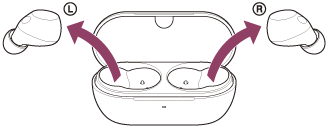
The headset turns on automatically.
-
Put the headset units into your ears.
When the headset has automatically connected to the last connected device, you will hear a notification sound indicating that the connection is established from both headset units at the same time. When you are wearing only one headset unit, you will hear the notification sound from the headset unit you are wearing.
Check the connection status on the computer. If it is not connected, proceed to step 4.
-
Select the following items from the Dock at the bottom of your computer screen.
[System Preferences] - [Bluetooth] : the system preferences icon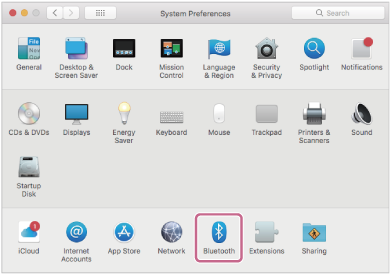
-
Click [WF-C710N] on the [Bluetooth] screen while pressing the computer Control button and select [Connect] from the pop-up menu.
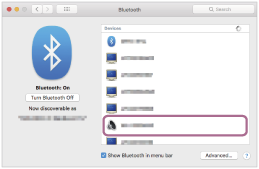
You will hear a notification sound indicating that the connection is established from both headset units at the same time. When you are wearing only one headset unit, you will hear the notification sound from the headset unit you are wearing.
Hint
- The above operating procedure is an example. For more details, refer to the operating instructions supplied with the computer.
Note
- If the music playback sound quality is poor, check that the A2DP function which supports music playback connections is enabled in the computer settings. For more details, refer to the operating instructions supplied with the computer.
- If the last-connected Bluetooth device is placed near the headset, the headset may connect automatically to the device by simply turning on the headset. If this is the case, deactivate the Bluetooth function on the last-connected device or turn off the power.
- If you cannot connect your computer to the headset, delete the headset pairing information on your computer. Then, pair them again. For the operating procedures on your computer, refer to the operating instructions supplied with the computer.