


Making a call
You can talk on the phone hands-free via a Bluetooth connection on a smartphone that supports the following Bluetooth profiles.
- HFP (Hands-free Profile)
- HSP (Headset Profile)
- If your smartphone supports both HFP and HSP, set it to HFP.
- The operating procedure may vary depending on the smartphone. Refer to the operating instructions supplied with the smartphone.
- Depending on the connected device or the application you are using, the functions may not work properly even if you try to operate them with the headset.
-
Connect the headset to a smartphone via a Bluetooth connection.
-
Operate your smartphone to make a call.
When you make a call, the dial tone is heard from the headset.
If you make a call while listening to music, playback pauses automatically.
If playback is not paused, operate the headset to pause playback.
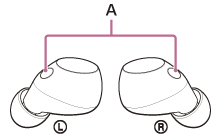
You can talk using the microphones (A) on the left and right headset units.
If no dial tone is heard via the headset
Use your smartphone to transfer the call to the headset.
-
Operate the smartphone to adjust the volume.
-
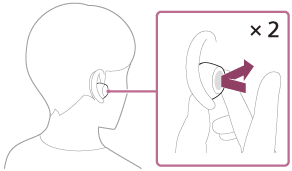
When you have finished your call, tap the touch sensor on the left or right headset unit twice quickly with an interval of about 0.3 seconds between taps to end the call.
If you made a call during music playback, music playback resumes automatically after ending the call.
Hint
- The volume can also be adjusted on the “Sound Connect” app. The headset volume during a call and during music playback can be independently adjusted. Even if you change the volume during a call, the volume of music playback does not change.
- You can also talk hands-free even when you are wearing only one headset unit. If you put the other headset unit into the other ear while you are talking with only one headset unit, you can talk with both headset units.
Note
- Depending on the connected device or playback application you are using, when you make a call during music playback, playback may not resume automatically even after you finish the call.
- Use the smartphone at least 50 cm (1.6 ft) away from the headset. Noise may result if the smartphone is too close to the headset.
- In order to make it easier for you to hear your own voice during a phone call, the microphones work to capture ambient sounds (Sidetone function). If your voice is too loud or the sounds in your surroundings are bothering you, turn off [Capture Voice During a Phone Call] on the “Sound Connect” app.
- The volume during calls cannot be adjusted with the headset. Adjust the volume on the connected device or the “Sound Connect” app.
- When you are using only one headset unit, be sure to set the other headset unit into the charging case.
- Depending on the caller’s voice characteristics or the ambient environmental noises, the audio signal processing that is mounted on the headset may not work well and the call sound quality may be reduced.