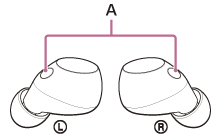
About the touch sensor
Tap the touch sensor (A) to perform actions such as music playback, phone calls, or changing the setting of the noise canceling function.
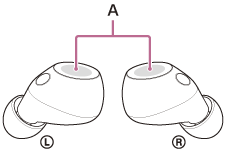
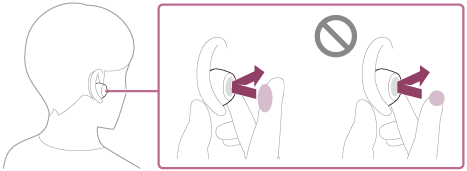
To operate the touch sensor, tap the center of the touch sensor with the pad of your index finger.
Main actions
| Left | Right | |
|---|---|---|
| Tap | To switch between the noise canceling function and Ambient Sound Mode | To play or pause music |
| Tap twice | To receive or end a call To use Quick Access (settings on the “Sound Connect” app are required) |
To skip to the beginning of the next track To receive or end a call |
| Tap 3 times | To use Quick Access (settings on the “Sound Connect” app are required) | To skip to the beginning of the previous track or the current track during playback |
| Tap 4 or more times | To lower the volume | To increase the volume |
| Hold your finger to the touch sensor | To use the Quick Attention Mode | To use or cancel the voice assist function (Google app/Siri) |
Hint
- When tapping the touch sensor multiple times, tap it quickly with an interval of about 0.3 seconds between taps.
- You can change the function assignments to the touch sensors of the left and right headset units using the “Sound Connect” app. For example, the music playback function that is assigned to the touch sensor of the right unit in the factory settings can be changed to the touch sensor of the left unit.
You can also change the settings that do not assign the music playback function, noise canceling function, Ambient Sound Mode and playback volume adjustment function, etc.
Note
- You cannot operate the touch sensors when not wearing the headset. If you disable the wearing detection automatic power off function with the “Sound Connect” app, the touch sensors can be operated even when the headset is not being worn.
- When tapping the headset units, do not tap the microphone part (A). Noise or an unusual sound may be emitted from the headset if the microphone part is tapped.