


Pairing and connecting with a computer (Mac)
The operating procedure to register the device that you wish to connect to is called “pairing”. First, pair a device to use it with the headset for the first time.
Compatible OS
macOS (version 12 or later)
Before starting the operating procedure, check the following.
- Your computer has a Bluetooth function that supports music playback connections (A2DP).
- When you use a video calling application on your computer, your computer has a Bluetooth function that supports calling connections (HFP/HSP).
- The computer is placed within 1 m (3.2 ft) of the headset.
- The headset is charged sufficiently.
- The operating instructions for the computer are in hand.
- Depending on the computer you are using, the built-in Bluetooth adaptor may need to be turned on. In the following cases, refer to the operating instructions supplied with your computer.
- You do not know how to turn on the Bluetooth adaptor.
- You want to know if your computer has a built-in Bluetooth adaptor.
- Set the computer speaker to the ON mode.
If the computer speaker is turned off, no sound can be heard from the headset.
 : the icon showing the speaker is off
The icon below shows the computer speaker is turned on.
-
Check the status of the headset.
The headset enters pairing mode automatically in the following cases. Proceed to step 2.
- When you pair the headset with a device for the first time after purchasing the headset
- After initializing the headset and clearing all pairing information
When you pair a second or subsequent device, if the headset already has pairing information for other devices, enter pairing mode manually. Press and hold the Bluetooth button (A) for about 5 seconds or more.
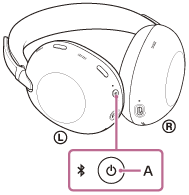
The indicator repeatedly flashes in blue twice in a row. You will hear the voice guidance say, “Pairing”.
-
Wake the computer up if the computer is in standby (sleep) or hibernation mode.
-
Select the following items from the Dock at the bottom of your computer screen.
[System Preferences] - [Bluetooth] : the system preferences icon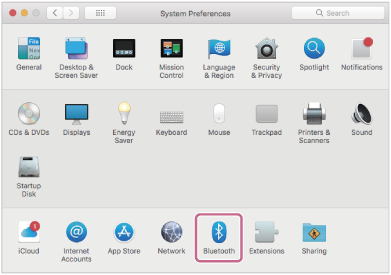
-
Select [1000X THE COLLEXION] on the [Bluetooth] screen and click [Connect].
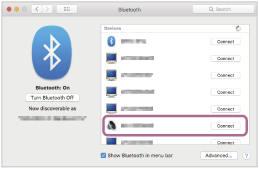
If Passkey (*) input is required, input “0000”.
The headset and computer are paired and connected with each other.
You will hear a notification sound indicating that the connection is established.
If they are not connected, see “Connecting to a paired computer (Mac)”.If [1000X THE COLLEXION] does not appear on your computer screen, try again from step 3.
(*) A Passkey may be called “Passcode”, “PIN code”, “PIN number”, or “Password”.
Hint
- The above operating procedure is an example. For more details, refer to the operating instructions supplied with the computer.
- To delete all Bluetooth pairing information, see “Initializing the headset to restore factory settings”.
Note
- If pairing is not established within 5 minutes, pairing mode is canceled. In this case, turn off the power and start the operating procedure again from step 1.
- Once Bluetooth devices are paired, there is no need to pair them again, except in the following cases:
- If pairing information is deleted, such as after a repair
- When a 9th device is paired
The headset can be paired with up to 8 devices. If you pair a 9th device, the pairing information with the oldest connection date and time will be overwritten with the information for the new device. - When the pairing information for the headset has been deleted from the connected Bluetooth device
- When the headset is initialized
All of the pairing information will be deleted. In this case, delete the pairing information for the headset from the connected device and then pair them again.
- The headset can be paired with multiple devices, but can only play music from 1 paired device at a time.