


How to keep the software up-to-date (for comfortable use of the headset)
Update the headset software to enjoy new functions and resolve certain issues. Update the headset software using the “Sound Connect” app.
For details on the latest headset software and how to update the software, refer to the information on the support website.
When the update automatically setting is enabled on the “Sound Connect” app and the following conditions are met, the software update starts automatically at around night time when the headset is not in use.
- The software has already transferred.
- The remaining battery charge of the headset is more than 20%.
- The headset is turned off.
You can also update the headset software in the following way.
-
Turn on the headset.
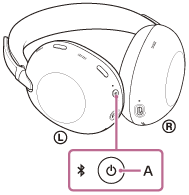
Press and hold the power button (A) for about 2 seconds or more.
-
Launch the “Sound Connect” app on a mobile device such as a smartphone.
-
Update the headset software following the on-screen instructions.
Note
- Before performing an update, disconnect any other Bluetooth devices connected to the mobile device being used for the update.
Software may not be updated when the mobile device is connected with other devices compatible with Bluetooth Low Energy (such as wearable devices or smart watches). - Note the following if the update cannot be completed.
- Close all the apps installed on the mobile device except the “Sound Connect” app.
- Fully charge the headset and the mobile device.
- Put the headset and the mobile device being used for the update as close to each other as possible before starting the update.
- Do not start the update if there are wireless LAN devices or other Bluetooth devices nearby.
- Turn off the power saving mode (*) of your mobile device before updating the software.
Depending on the OS version of your mobile device, the update may not be completed under the power saving mode.
(*) Names may vary according to the mobile device you are using.
TP1002089841