SONYHelp Guide

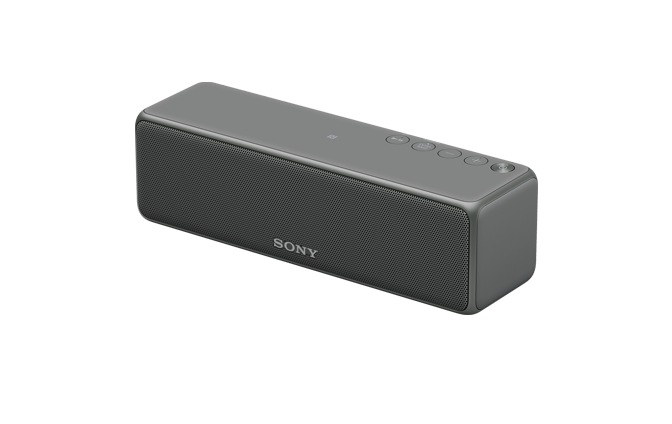
Wireless Speaker h.ear go 2 (SRS-HG10)

  • menu
  • Search
  • Printable PDF

The following explains how to use this speaker.

This Help Guide is also available as a PDF, which can be downloaded here.

The content referenced in the Operating Instructions is described in detail through the following links.

  • Installing “Sony | Music Center”

    “Sony | Music Center” is an application for controlling Sony audio devices which are compatible with “Sony | Music Center,” by your smartphone or iPhone.

  • Connecting by using “Sony | Music Center”

    This section explains how to connect the speaker to a Wi-Fi network.

  • Playback via a network (Internet music streaming service)

    You can stream music from the Internet using “Sony | Music Center.”

  • Playback via a network (Wireless Multi-room, Wireless Surround, Wireless Stereo)

    Enjoy music in any room via Wi-Fi. You can listen to your favorite music stored in your PC or smartphone, or from music streaming services by using “Sony | Music Center,” in different rooms with high sound quality.

Go to Page Top
    • Parts and controls
      • Charging the battery
      • Turning the power on
      • Using the BLUETOOTH®/Network standby mode
      • Auto Power Off (Auto Standby) mode
    • About “Sony | Music Center”
    • Installing “Sony | Music Center”
    • Main setting items of “Sony | Music Center”
    • Wi-Fi network connection (“Sony | Music Center”)
    • Listening to music on a device connected to the home network(“Sony | Music Center”)
    • Listening with multiple speakers (Wireless Multi-room, Wireless Surround, Wireless Stereo)
      • Connecting via a USB cable
      • Making a wireless connection (BLUETOOTH connection)
      • Using “Windows Media Player” (Windows 7 or later)
      • Using other music playback software
      • Making a wireless connection (BLUETOOTH connection)
      • Connecting via an audio cable (with stereo mini plugs/no resistance)
      • Using “Sony | Music Center”
      • Connecting via a USB cable
      • Making a wireless connection (BLUETOOTH connection)
      • Connecting via an audio cable (with stereo mini plugs/no resistance)
      • Using “Sony | Music Center”
      • Making a wireless connection (BLUETOOTH connection)
      • Connecting via an audio cable (with stereo mini plugs/no resistance)
      • Using “Sony | Music Center”
    • Making a wireless connection (BLUETOOTH connection)
    • Connecting via an audio cable (with stereo mini plugs/no resistance)
    • Connecting via a USB cable
    • Making a wireless connection (BLUETOOTH connection)
    • Connecting via an audio cable (with stereo mini plugs/no resistance)
      • Connecting via a USB cable
      • Making a wireless connection (BLUETOOTH connection)
      • Making a wireless connection (BLUETOOTH connection)
      • Using “Sony | Music Center” (Chromecast built-in)
      • Selecting the Wi-Fi network connection method
      • DLNA (Digital Living Network Alliance)
      • Connecting to a Wi-Fi network using the Wi-Fi Protected Setup (WPS) button of the wireless router
      • Connecting to a Wi-Fi network using a PC connected wirelessly
      • How to turn off the Wi-Fi network/BLUETOOTH function
      • Using this speaker as a rear speaker (Wireless Surround)
      • Connecting two speakers (Wireless Stereo)
      • How to make a wireless connection with BLUETOOTH devices
      • Pairing and connecting with a BLUETOOTH device
      • Pairing and connecting with a PC (Windows 10)
      • Pairing and connecting with a PC (Windows 8.1)
      • Pairing and connecting with a PC (Windows 7)
      • Connecting with an NFC-compatible device by one touch (NFC)
      • Connecting with a paired BLUETOOTH device
      • Connecting with a paired PC (Windows 10)
      • Connecting with a paired PC (Windows 8.1)
      • Connecting with a paired PC (Windows 7)
      • Connecting two speakers (Speaker Add function)
      • Switching between double mode and stereo mode (Speaker Add function)
      • Terminating the BLUETOOTH connection (After use)
      • Connecting a WALKMAN® compatible with High-Resolution Audio formats
      • Connecting an Xperia compatible with High-Resolution Audio formats
      • Connecting to a portable audio device, etc.
      • Setting your PC as a DLNA server and controller (Windows 10)
      • Setting your PC as a DLNA server and controller (Windows 8.1)
      • Setting your PC as a DLNA server and controller (Windows 7)
      • Connecting a PC/Installing the dedicated driver
      • Listening to music on a PC via a network (“Windows Media Player”)
      • Listening to music on a PC via a network (“Windows Media Player” with “Sony | Music Center” operation)
      • Listening with multiple speakers (Wireless Multi-room, Wireless Surround, Wireless Stereo)
      • Listening to an Internet music service (Spotify)
      • Selecting the BLUETOOTH audio streaming playback quality (Codec)
      • Listening to music on a device via a BLUETOOTH connection
      • Terminating the BLUETOOTH connection (After use)
      • Listening to music on a WALKMAN® compatible with High-Resolution Audio formats
      • Listening to music on an Xperia compatible with High-Resolution Audio formats
      • Listening to music on a PC
      • Listening to music on a portable audio device, etc.
    • Receiving a call
    • Making a call
    • Terminating the BLUETOOTH connection (After use)
    • Button functions for a phone call
    • Using the voice assist function (Google app)
    • Using the voice assist function (Siri)
    • About High-Resolution Audio format files
    • Installing “Hi-Res Audio Player” to a PC
    • Listening to High-Resolution Audio format files via a network
    • Specifications
    • About the indicators
      • Compatible iPhone/iPod touch models
      • Compatible WALKMAN® models
      • Compatible operating systems (Windows)
      • Compatible operating systems (Mac)
      • Compatible DLNA devices
      • Compatible BLUETOOTH devices
      • Compatible USB devices
      • Updating the pre-installed software
      • Update method 1: Automatic update via the Internet
      • Update method 2: Manual update via the Internet
      • Searching the latest software via a network connection
      • Checking the Wi-Fi signal strength (reception sensitivity)
      • Precautions
      • What is BLUETOOTH wireless technology?
      • What is LDAC?
    • About the voice guidance
    • Trademarks
    • Important information on software
    • Notes on software
      • Customer support websites
    • What can I do to solve a problem?
      • Unable to turn on the speaker or charge the built-in battery
      • Any button on the speaker cannot be operated
      • The power suddenly turns off
      • The power indicator flashes in red
      • The CHARGE indicator flashes
      • No sound/Sound from only one speaker/Low sound level
      • Distorted sound/humming or noise from the speaker
      • The volume is getting smaller while using
      • The speaker cannot connect to the network (Other equipment on the network cannot find or recognize the speaker)
      • Unable to connect to a network via a Wi-Fi connection
      • Unable to connect to a network via a Wi-Fi connection (even though a correct SSID is selected)
      • The speaker cannot connect to a network using the UPDATE/WPS button
      • The speaker does not appear in the device list of the PC's music playback application
      • The speaker does not appear in the device select screen of “Sony | Music Center”
      • The speaker cannot connect to music services
      • The controller cannot find the speaker (The controller cannot browse the contents of the speaker)
      • Music started automatically (home network)
      • The sound is interrupted
      • Playback does not start
      • Smartphone, iPhone, etc. cannot be paired
      • Unable to connect the speaker to a BLUETOOTH device with One-touch (NFC)
      • There is no sound (BLUETOOTH)
      • Distorted sound/humming or noise from the speaker
      • An unsupported USB device is connected
      • There is no sound (USB)
      • There is noise, skipping, or distorted sound
      • Playback does not start
      • Playback does not start from the first track
      • Updating the pre-installed software
      • Update method 1: Automatic update via the Internet
      • Update method 2: Manual update via the Internet
      • Searching the latest software via a network connection
      • Reset the speaker
      • Initializing the speaker
      • Disposing of or giving away this speaker
4-735-503-11(2)
Copyright 2018 Sony Corporation
Go to Page Top