


Setting up a wireless LAN: Access Point Set.
You can register your access point manually. Before starting the procedure, check the SSID name of the access point, security system, and password. The password may be preset in some devices. For details, see the access point operating instructions, or consult the access point administrator.
-
MENU →
 (Network) → [Wi-Fi Settings] → [Access Point Set.].
 -
Select the access point you want to register.
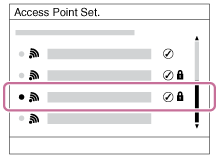
When the desired access point is displayed on the screen: Select the desired access point.
When the desired access point is not displayed on the screen: Select [Manual Setting] and set the access point.
- If you select [Manual Setting], input the SSID name of the access point, then select the security system.
The default security method is [WPA2].
- If you select [Manual Setting], input the SSID name of the access point, then select the security system.
-
Input the password, and select [OK].
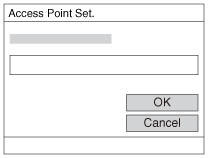
- Access points without the
 mark do not require a password.
- Access points without the
-
Select [OK].
Other setting items
Depending on the status or the setting method of your access point, you may want to set more items.
WPS PIN:
Displays the PIN code you enter into the connected device.
Priority Connection:
Select [On] or [Off].
IP Address Setting:
Select [Auto] or [Manual].
IP Address:
If you have set [IP Address Setting] to [Manual], enter the fixed address.
Subnet Mask/Default Gateway/Primary DNS Server/Second DNS Server:
If you have set [IP Address Setting] to [Manual], enter each address according to your network environment.
Hint
- For details on how to input using the software keyboard, see the “Help Guide” for the camera.
Note
- To give the registered access point priority in the future, set [Priority Connection] to [On].
- [WPA2]/[None] can be selected for [Security]. From a security standpoint, we recommend using the encrypted method WPA2. To ensure a secure wireless LAN connection, we strongly recommend using an access point with WPA2 security settings.
- Connecting to an access point without security settings may result in hacking, access from malicious third parties, or attacks on vulnerabilities. Unless there is a specific reason, we do not recommend using an access point without security settings.
- When manually setting an access point or IP address, the number and types of characters that can be entered are as follows.
- SSID : The maximum length is 32 characters. The types of characters that can be entered are letters of the alphabet (both uppercase and lowercase), numbers, and symbols.
- Password : The length must be between 8 and 64 characters. The types of characters that can be entered are letters of the alphabet (both uppercase and lowercase), numbers, and symbols.
- IP Address / Subnet Mask / Default Gateway / Primary DNS Server / Second DNS Server: The maximum length is 15 characters. The types of characters that can be entered are numbers and “.” only.
