


What you can do while connected to a game console
When you connect the headset to a game console such as computer or PS5, you can do the following.
Adjusting the volume
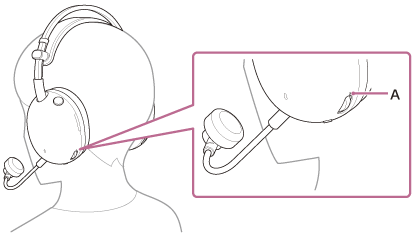
You can adjust the volume to the desired level with the volume dial.
The + side has a tactile dot (A).
-
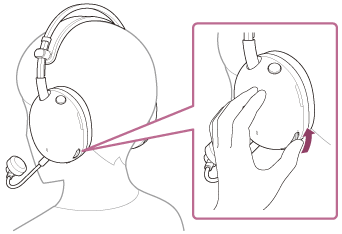
To increase the volume
Turn the volume dial to the + side.
-
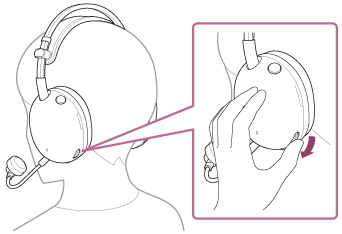
To lower the volume
Turn the volume dial to the – side.
Adjusting the volume balance between game and chat (GAME/CHAT BALANCE)
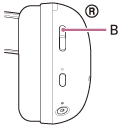
You can adjust the volume balance between the game sound and voice chat with the GAME/CHAT BALANCE button (B).
When you press the game button, the game sound will be easier to hear.
When you press the chat button, the voice chat sound will be easier to hear.
Note
- Some games may not support the GAME/CHAT BALANCE button.
- The GAME/CHAT BALANCE button is only enabled when connected to a computer and the slide switch on the USB transceiver is set to “PC”. The volume balance with a Bluetooth device cannot be adjusted.
- Set the audio output destination for each application on your computer as follows.
If the settings are incorrect, the volume balance between the game sound and voice chat is not adjusted properly.- Gaming apps
[INZONE H9 II – Game] - Chat apps
[INZONE H9 II – Chat]
- Gaming apps
- Be careful since when you press the chat button while the audio output device of the computer is set as follows, the volume of games will be increased.
[INZONE H9 II – Chat] - Depending on the caller’s voice characteristics or the ambient environmental noises, the call sound quality may be reduced.
Switching the microphone on or off
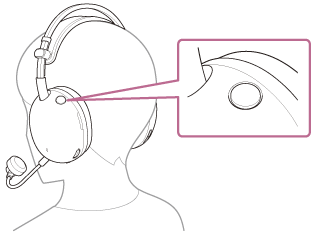
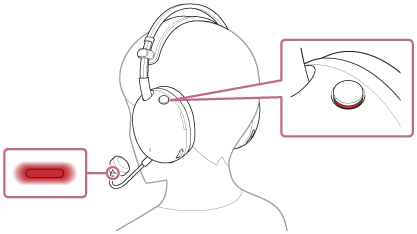
When the microphone is not in use, press the microphone on or off button so that the button is pushed out. The microphone is turned off and the microphone cannot be used. A red line appears on the side of the button and the microphone on or off indicator on the tip of the microphone lights up in red.
When using the microphone, press the microphone on or off button so that the button is pressed in. The microphone off state is released and the microphone can be used. The red line on the side of the button disappears and the microphone on or off indicator on the tip of the microphone turns off.
- Turning on the microphone
- Turning off the microphone
Note
- Be careful not to hit your eyes with the boom microphone when putting on, taking off or using the headset.
- If the headset is turned off and the headphone cable is connected, the microphone on or off indicator does not light up even if the microphone is off.