


Using the noise canceling function
You can use the noise canceling function to enjoy gaming or music without being disturbed by ambient noise.
-
Turn on the headset.
You will hear a notification sound indicating that the headset is turned on.
-
Press the noise canceling/Ambient Sound Mode button (A) to change the settings of the noise canceling function.
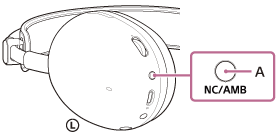
Each time the button is pressed, the function switches as follows.
The noise canceling function is enabled and Ambient Sound Mode is disabled.
You will hear a notification sound indicating that the function has switched.

Ambient Sound Mode is enabled and the noise canceling function is disabled.
You will hear a notification sound indicating that the function has switched.
The noise canceling function and Ambient Sound Mode are disabled.
You will hear a notification sound indicating that the function has switched.
Check the notification sound
It may not play on any browsers except the latest ones.
- When the noise canceling function is enabled
- When Ambient Sound Mode is enabled
- When the noise canceling function and Ambient Sound Mode are disabled
Hint
- The noise canceling function can be used even if the connection is changed from a USB transceiver or from a Bluetooth connection to a headphone cable connection.
- In the factory settings, the noise canceling function is disabled when the headset is turned on. This setting can be changed using the “INZONE Hub” or “Sound Connect” app.
- You can also enable or disable the noise canceling function, and change the settings of the noise canceling function and Ambient Sound Mode with the “INZONE Hub” or “Sound Connect” app.
- The “INZONE Hub” or “Sound Connect” app allows you to set a combination of the following three modes. If you select multiple modes, you can switch between them sequentially by pressing the noise canceling/Ambient Sound Mode button.
- Noise canceling function enabled
- Ambient Sound Mode enabled
- Noise canceling function and Ambient Sound Mode disabled