


Checking the remaining battery charge
You can check the remaining battery charge of the rechargeable battery in the following ways.
Checking with the power button
If the headset has enough remaining battery charge when you turn on the headset, the power indicator flashes in white twice.
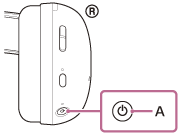
When you press the power button (A) while the headset is on, a voice guidance indicating the remaining battery charge can be heard.
“Battery about XX %” (The “XX” value indicates the approximate remaining charge.)
“Battery fully charged”
The remaining battery charge indicated by the voice guidance may differ from the actual remaining charge in some cases. This is a rough estimate.
The indicator also flashes in orange for about 15 seconds if the remaining battery charge is 20% or lower when the headset is turned on.
Notification with voice guidance
A notification sound is emitted and the charging indicator flashes in orange for about 15 seconds. If you hear the voice guidance say, “Low battery”, charge the headset as soon as possible.
When the battery becomes completely empty, a notification sound is emitted. The voice guidance says “Battery is empty” and the headset automatically turns off.
When using the headset by connecting to a computer
The icon indicating the remaining battery charge is displayed on the “INZONE Hub” screen in 4 levels: 100%, 70%, 50%, and 20%.
When you are using an iPhone (iOS 13 or later)
When the headset is connected to an iPhone via an HFP Bluetooth connection, you can check the remaining battery charge of the headset on an iPhone. For details, refer to the operating instructions supplied with the iPhone.
- HFP: Hands-free Profile
The remaining charge which is displayed may differ from the actual remaining charge in some cases. This is a rough estimate.
When you are using an Android™ smartphone (OS 8.1 or later)
When the headset is connected to an Android smartphone via HFP or LE Audio Bluetooth connection, you can check the remaining battery charge of the headset on the smartphone. For more details, refer to the operating instructions supplied with the Android smartphone.
The remaining charge which is displayed may differ from the actual remaining charge in some cases. This is a rough estimate.
Hint
- You can also check the remaining battery charge of the headset with the “Sound Connect” app. Android smartphones and iPhone both support this app.
Note
- If the headset and smartphone are not connected with HFP or LE Audio, the remaining battery charge will not be correctly displayed.
-
The remaining battery charge may not be properly displayed in the following cases:
- When the headset has not been used for a long period of time.
- For example, immediately after a software update.
In this case, repeatedly charge and discharge the battery multiple times to properly display the remaining battery charge.