


Charging the headset
The headset contains a built-in lithium-ion rechargeable battery. Use the supplied USB Type-C cable to charge the headset before use.
-
Connect the headset to an AC outlet.
Use the supplied USB Type-C cable and a commercially available USB AC adaptor (A).
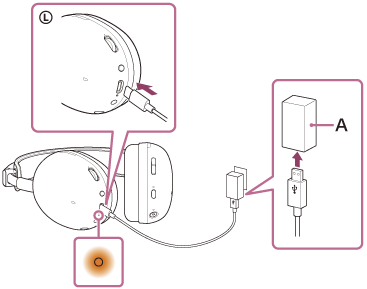
The charging indicator on the headset lights up in orange.
When charging is complete, the charging indicator turns off automatically.
After charging is complete, disconnect the USB Type-C cable.
About the charging time
The required time for fully charging the headset is about 3.5 hours (*).
(*) Time required for charging the empty battery to its full capacity. The charging time may differ depending on the conditions of use.
About using the headset while charging
The headset can also be used with a USB AC adapter connected to an AC outlet.
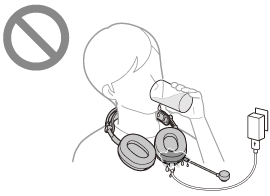
Do not charge the headset when there is liquid such as water or sweat, or foreign matter such as dust on the USB Type-C cable or USB Type-C port. Doing so may result in accidents such as burns or serious injury due to fire, electric shock, overheating, or ignition. Note the following when using the headset while charging.
- If you feel any abnormalities, stop using the headset immediately.
- Check that there is no dust or foreign objects in the port.
- If the USB Type-C cable or USB Type-C port gets wet with liquid such as drinking water or sweat while charging, immediately disconnect the USB Type-C cable from the connected device. Charging will stop.
System requirements for battery charge using USB
USB AC adaptor
A commercially available USB AC adaptor capable of supplying an output current of 0.5 A (500 mA) or more
Recommended personal computer OS version
Windows®: Windows 11 or later
Mac: macOS 13 or later
Hint
- The headset can be also charged by connecting the headset to a running computer using the supplied USB Type-C cable.
- You can charge the headset while it is in use by using the following connection methods.
- Connect the headset to an AC outlet using the USB AC adapter
- Connect the headset to a personal computer with a USB charging compatible terminal as standard equipment
Note
- Charging may not be successful with cables other than the supplied USB Type-C cable.
- Charging may not be successful depending on the type of USB AC adaptor.
- The headset cannot be charged when the computer goes into standby (sleep) or hibernation mode. In this case, start charging once again after changing the computer settings.
- The headset may not be able to charge when the PS5 is in rest mode. If this is the case, change the PS5 settings so that the USB ports on the PS5 can be used for charging even when in rest mode.
- If the headset is not used for a long time, the rechargeable battery usage hours may be reduced. However, the battery hours will improve after several charge and discharge cycles. If you store the headset for a long time, charge the battery once every 6 months to avoid over-discharge.
- If the headset is not used for a long time, it may take longer to charge the battery.
- If the headset detects a problem while charging due to the following causes, the charging indicator in orange flashes in orange. In this case, pull out and insert the USB Type-C cable, then charge once again within the charging temperature range. If the problem persists, consult the Sony support contact or your nearest Sony dealer.
- Ambient temperature exceeds the charging temperature range of 5 °C - 35 °C (41 °F - 95 °F).
- There is a problem with the rechargeable battery.
- If the headset is not used for a long time, the charging indicator may not immediately light up in orange when charging. Please wait a moment until the indicator lights up.
- If the usage hours of the built-in rechargeable battery decrease significantly, the battery should be replaced. Consult the Sony support contact or your nearest Sony dealer.
- Avoid exposure to extreme temperature changes, direct sunlight, moisture, sand, dust, and electrical shock. Never leave the headset in a parked vehicle.
- When charging by connecting the headset to a computer, use only the supplied USB Type-C cable, and make sure to connect them directly. Charging will not be properly completed when the headset is connected through a USB hub.
- If you connect the headphone cable and charge at the same time, noise may occur depending on the connected device. It is not recommended to charge the battery while the headphone cable is connected.