


Audio sharing (Broadcasting) (Bluetooth LE Audio)
Audio sharing (Broadcasting) is a feature that uses LE Audio, which is a new sound communication standard for Bluetooth technology.
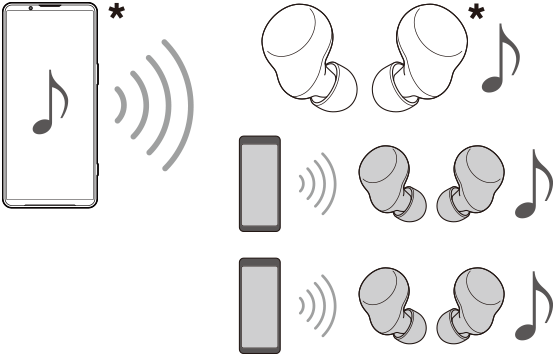
The Audio sharing function enables you to share audio content and enjoy it with two or more people. (A)
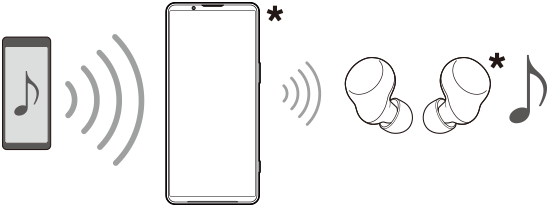
The Audio sharing function also enables you to listen to someone else’s shared audio content from your headphones. (B)
The Audio sharing function of LE Audio must be supported by both the audio sharing and receiving devices. You must pair your device with the set of headphones supporting LE Audio that you will operate from your device.
This device is compatible with Auracast™.
(A): Sharing audio from your device
* Your device and headphones are shown in white in the illustration.
(B): Listening to someone else’s shared audio
* Your device and headphones are shown in white in the illustration.
Sharing audio from your device
-
Find and tap as follows.
[Settings] > [Device connection] > [Connection preferences] > [Audio sharing]
-
Tap the switch to enable the function.
[Share audio]
Audio sharing will start, and you will be able to listen to the audio via the headphones paired with your device.
Note
- Shared audio is not output from the speaker of your device.
Hint
-
You can also share audio from the Quick settings panel. In the Quick settings panel, tap as follows.
 (Bluetooth) > [Share audio] > [Share audio]
 -
You can also stop audio sharing from a notification. Swipe down from the top of the screen and tap the following in the notification panel.
[Audio sharing]: [Stop sharing]
-
You can edit the audio-sharing device name and/or the password by tapping each setting under the following.
[Audio stream settings]
Note that the following switch is set to off.
[Share audio]
Listening to someone else’s shared audio via the headphones paired with your device
-
Find and tap as follows.
[Settings] > [Device connection] > [Connection preferences] > [Audio sharing] > [Find an audio stream]
-
If you cannot find the setting, turn off the following switch.
[Share audio]
-
-
Tap the name of the device. Enter the password if prompted and tap the following.
[Connect]
Or, tap the following and scan the QR code of the audio sharing source.
[Scan QR code]
Reception of the shared audio will start, and you will be able to listen to the audio via the headphones paired with your device.
Tap the following to stop receiving the shared audio.
[Settings] > [Device connection] > [Connection preferences] > [Audio sharing] > [Find an audio stream]
Then, tap the name of the device and tap the following.
[Disconnect]