


Home screen
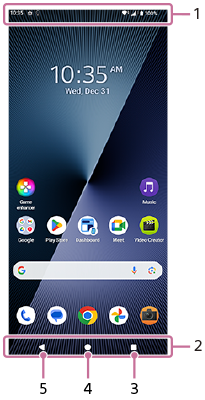
-
Status bar
-
Navigation bar
-
Overview button
Tap to find all open apps.
- To open another app, tap the overview button, swipe left or right to select the app you want to open, and then tap the app.
- To close an app, tap the overview button, swipe left or right to select the app you want to close, and then swipe up on the app.
-
You can use the following functions.
- [Screenshot]
- [Pop-up window]
- [Multi-window switch] (Split-screen mode)
-
Home button
Tap to exit an app and go back to the Home screen.
-
Back button
Tap to go back to the previous screen within an app or close the app.
Hint
-
When the 3 buttons for Home, Back, and Overview are not displayed at the bottom of the screen, find and tap as follows.
[Settings] > [System] > [Gestures] > [Navigation mode] > [3-button navigation]
-
When the orientation of your device and the orientation of the displayed screen are different, the following icon is displayed in the navigation bar. You can rotate the displayed screen by tapping this icon.
 (Rotate)
You can set the screen to rotate automatically according to the orientation of your device. Find and tap as follows, and then tap the switch to enable the function.
[Settings] > [Display] > [Auto-rotate screen]
-
You can use the One-handed mode. To set the One-handed mode, find and tap as follows.
[Settings] > [System] > [Gestures] > [One-handed mode]
-
When you turn on the following switch, you can use the One-handed mode shortcut, and the One-handed mode shortcut icon will appear on the screen.
[One-handed mode shortcut]
-
If you have set the Navigation mode to Gesture navigation, you can also use the One-handed mode by turning on the following switch.
[Use one-handed mode]
-
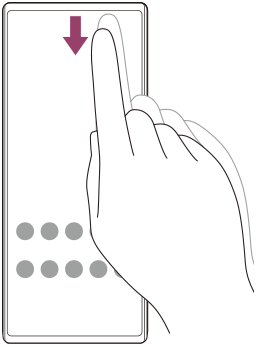
To open the Quick settings panel
- Swipe down twice from the top of the screen.
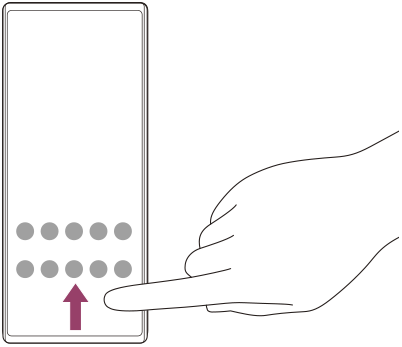
To open the app drawer
- On the Home screen, swipe up from the bottom of the screen to the top.
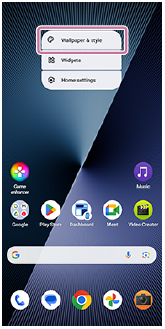
To change your wallpaper
You can change your wallpaper to a preset image or your favorite photo.
-
Touch and hold an empty area on the Home screen, and then tap as follows.
[Wallpaper & style] > [Change wallpaper]
Hint
- You can change the system accent color to match the selected wallpaper. Select the desired colors or settings on the Wallpaper & style settings screen.
-
To add a widget to the Home screen, touch and hold an empty area on the Home screen, and then tap the following.
[Widgets]
-
You can set the color contrast of the Home screen. High color contrast makes it easier to view the text, buttons, and icons on the screen. On the Wallpaper & style screen, tap as follows.
[Home screen] > [Color contrast] > the desired option