


Using the menu (Game enhancer)
By opening the Game enhancer menu while playing a game, you can check the conditions of your device, adjust the brightness level by dragging the slider, and change the settings.
- While playing a game, tap the icon.
 (Floating icon)
- In the menu that opens, tap and configure the desired settings.
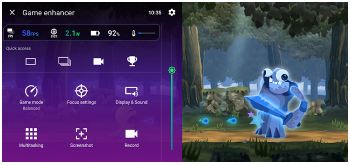
Game enhancer settings
-
 (Game enhancer settings)
You can switch the type of the Game enhancer menu, assign a Game enhancer action used in-game to the shutter button, and select the Game mode style.
-
[Game mode]
You can check the conditions of your device or select a mode by tapping each tab at the top of the Game mode screen.
In the following modes, the grayed-out settings are automatically applied as adjusted values.
- [Battery]
- [Balanced]
- [Performance]
To create your ideal gaming conditions by fine-tuning all settings, select the following mode.
[Custom]
The following settings are shared among modes. You can change the settings for each game.
- [H.S. power control]
- [Release RAM]
- [Optimize touch area]
-
[Focus settings]
You can focus on your game by blocking notifications and incoming calls and disabling the shutter button, Side sense, and other settings that may compromise gameplay.
-
[Display & Sound]
You can preset up to 4 settings each for the image quality and sound settings. By selecting a preset according to your gaming situation, you can apply the appropriate settings.
Tap the following icon at the top of the screen to select the preset you want to set.
 (Back) or
  (Forward)
 -
[Multitasking]
-
Tap the tab you want to display.
[WEB]/[YouTube]: You can search for game information.
-
[APPS]: You can open an app in the pop-up window by selecting an app.
-
-
[Screenshot]
You can take a screenshot of the displayed screen and customize the screenshot burst settings. You can also set to take a screenshot using the shutter button in the Game enhancer settings.
-
[Record]
You can record a video of your gameplay screen with game sounds, voices, and players’ faces displayed on your screen.
Hint
-
If the following button is displayed in the upper right of the screen in the Game enhancer menu, tap it to view descriptions of settings.
 (Show details)
 -
You can drag and move the following icon displayed while playing a game to the desired position.
(Floating icon) or  (Pull-down bar)
 -
The STAMINA mode is turned off while you are using the Game enhancer app. If you want to give priority to the battery life, perform the following procedure while playing a game.
(Floating icon) > [Game mode] > [Battery] -
You can apply the following settings to all previously added games.
- [Menu type]
- [Game mode style]
- [HWB shortcut]
On the main screen after launching the Game enhancer app, tap the icon.
(Game enhancer settings)Then, tap one of the following.
- [Default menu type]
- [Default Game mode style]
- [Default HWB shortcut] > [Shutter button press]
Then, select the desired option and apply it.