


Function menu (Pro photo)
Tap the Fn button to open the function menu. To close the function menu, tap the Fn button again.
![Image showing where each icon is located on the Function menu in the [Pro photo] mode of the Camera app. Upper row from left to right, 1 to 6. Lower row from left to right, 7 to 12.](image/scr-256-camera-pro-function-menu.png)
-
Drive mode
Self-timer: 10 sec / Self-timer: 3 sec
Single shooting
Continuous shooting: Lo: You can shoot images continuously while you touch and hold the screen shutter button or long press the device shutter button. The speed reaches a maximum of 10 images per second.
Continuous shooting: Hi: You can shoot images continuously while you touch and hold the screen shutter button or long press the device shutter button. The speed reaches a maximum of 20 images per second.
Continuous shooting: Hi+: You can shoot images continuously while you touch and hold the screen shutter button or long press the device shutter button. The speed reaches a maximum of 30 images per second.
Note
- The speed of continuous shooting decreases when the buffer memory of your device becomes full.
Hint
-
Tap as follows to set whether to display the continuous shooting feedback indicator.
[MENU] > [Shooting]
Then, tap the following switch.
[Continuous shooting feedback]
-
To cancel the Self-timer, tap the Drive mode button, and then select the following.
[Single shooting]
-
Focus mode
Single-shot AF: Use the setting when the subject is motionless. Press the device shutter button halfway down to focus on a subject. The focus remains locked until you stop pressing the device shutter button halfway down.
Continuous AF: Use the setting when the subject is in motion. The camera continues to focus while you press the device shutter button halfway down.
Manual Focus: You can adjust the focus manually using the slider in the viewfinder. You can also tap one of the following icons to make finer adjustments.
 (Focus near) /
  (Focus far)
To adjust the focus by enlarging the image, tap the following icon and drag the viewfinder to move the magnified area or double-tap the area you want to magnify.
 (Focus magnifier)
If you cannot focus on the intended subject using the auto focus, use the manual focus.
-
Focus area
Wide: The camera automatically focuses on the whole range of the screen.
Center: The camera automatically focuses on a subject in the center of the image.
Focus and tracking: If you select an object to focus on and track by touching it in the viewfinder, the camera will focus on the object and start tracking it when you press the device shutter button halfway down.
Hint
-
You can select the color of the focus area. Tap as follows and then select an option.
[MENU] > [Focus] > [Focus area color]
-
-
Computational photo
Auto / Off: The camera automatically identifies the scene and overlaps multiple photos to take beautiful automatic shots with reduced blur, noise, overexposure, and underexposure.
-
DRO/Auto HDR
D-Range Optimizer: The camera optimizes brightness and gradation by analyzing the contrast between the subject and the background from a single image.
Auto HDR: The camera optimizes brightness and gradation by overlaying multiple images shot using different exposures.
Off
Hint
-
Tap as follows to use the Ultra HDR (High Dynamic Range) format, which allows you to take bright and vibrant photos.
[MENU] > [Setup] > [Ultra HDR] > [On]
-
-
Metering mode
Multi: The camera measures light on each area after dividing the total area into multiple areas and determines the proper exposure of the entire screen (Multi-pattern metering).
Center: The camera measures the average brightness of the entire screen, while emphasizing the central area of the screen (Center-weighted metering).
Spot: The camera measures only inside the metering circle.
-
Face/Eye AF
Face/Eye AF / Face AF / Off
The camera detects the faces or eyes of people and animals and focuses on them automatically.
When the camera detects the faces of people or animals, a detection frame appears. Tap the face on which you want to focus, and then press the device shutter button halfway down to focus. The detection frame will turn green, and the camera will focus on the face or one of the eyes you selected.
-
Creative look
ST (Standard) / NT (Neutral) / VV (Vivid) / FL (Film) / IN (Instant) / SH (Soft Highkey): Each preset look is optimized with a different combination of color tone, saturation, contrast, sharpness, brightness, and other image elements, so you can set up image processing with your ideal balance of these elements. For details about each preset look, tap the button.
 (Read more)
 -
Flash
Off / Auto / On / Light
-
WB
Auto / Cloudy / Daylight / Fluorescent / Incandescent / Shade: You can adjust the color tones according to the selected light source that is illuminating the subject (preset white balance). To finely adjust the color tones, tap the AB/GM button to display the fine adjustment screen, and then move the orange dot to the desired position. After adjusting, tap the button again to close the fine adjustment screen.
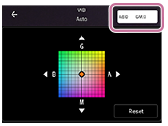
Temp 1 / Temp 2 / Temp 3: The camera memorizes white balance settings defined in terms of color temperature. Tap the K button to adjust the color temperature using the dial. Tap the AB/GM button to finely adjust the color tone using the fine adjustment screen. After adjusting, tap the button again to close the fine adjustment screen.
Custom 1 / Custom 2 / Custom 3: The camera memorizes the basic white color under the light conditions for the shooting environment. To adjust the basic white color, select one of the items, tap the following, and then follow the on-screen instructions.
[Set]
-
File format
RAW: Digital processing is not performed on this file format. Select this format to process images on a computer for professional purposes.
RAW & JPEG: A RAW image and a JPEG image are created at the same time. This is suitable when you need two image files, a JPEG for viewing, and a RAW for editing.
JPEG: The image is recorded in the JPEG format.
-
Peaking
On / Off: Peaking helps you to check the focus by enhancing the outlines of in-focus areas.
Hint
-
You can select the peaking color. Tap as follows and then select an option.
[MENU] > [Focus] > [Peaking color]
-
To reassign or reorder setting items in the function menu
-
Tap as follows.
[MENU] > [Setup] > [Function menu customization (photo)]
- Follow the on-screen instructions.