


Dashboard
-
Flick the Side sense bar inward toward the screen or find and tap the following icon.
 (Dashboard)
Dashboard overview
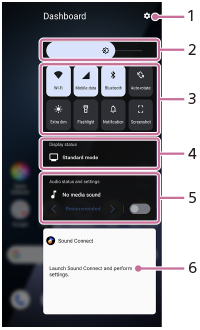
-
Tap to open the Side sense settings menu.
-
Brightness level
Adjust the brightness level.
-
Most-used settings
You can check the status of the settings.
Tap each setting to turn it on or off. Depending on the setting, you can adjust more options by touching and holding it.
 (Notification): Tap to open the notification panel.
 (Screenshot): Tap to take a screenshot.
 -
Display status
Tap to change the following settings.
[Image quality settings]
-
Audio status and settings
You can turn the audio effect on or off by tapping the switch.
You can also change the type of audio effect.
Tap the switch to turn the audio effect on, and then tap the following icons.
 (Back) or
  (Forward)
For more detailed settings, tap the panel to open the following settings.
[Playback quality]
-
Headphone control panel (Sony | Sound Connect)
You can control headphones manufactured by Sony that have an app linkage function.
The headphone control panel is displayed when the Sony | Sound Connect app is installed on your device and the switch is turned on by performing the following operations.
[Settings] > [Operation & View] > [Side sense] > [Add headphone controls]