


Status bar and notification panel
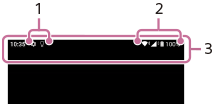
- Notification icons
- Status icons
- Status bar
To view notification content
When you open the notification panel, you can view the content of the displayed notification icons.
- Swipe down from the top of the screen to open the notification panel.
Hint
-
To expand and view more information about a notification, tap the icon.
 (Expand more)
Not all notifications are expandable.
-
To open the app in the pop-up window from the notification, tap the icon.
 (Pop-up window)
Not all apps can be opened in the pop-up window.
- To dismiss a notification from the notification panel, swipe the notification left or right. Not all notifications can be dismissed.
-
To change the notification settings, touch and hold the notification to display the following icon, then tap it.
 (Settings)
 -
By setting the Ambient display, you can set the screen to turn on for new notifications in the Sleep mode. Find and tap as follows, and then tap the switch to enable the function.
[Settings] > [Display] > [Lock screen] > [Wake screen for notifications]
-
You can turn off notifications with the following mode.
[Do Not Disturb]