


Setting a DSK
A DSK composites an image directly on the upper-most layer of the program output video. You can configure a total of two images, one each for the [DSK 1] and [DSK 2] layers. Compositing input from an external graphics system is also supported.
Switching the display (show/hide) of the program output in the [Layer] pane is supported.
Hint
- For a DSK transition, a cut (no transition effect) or a transition with mix effect can be selected.

-
Select the thumbnail for the [DSK 1] or [DSK 2] layer in the [Layer] pane.
The [DSK] tab and its setup items are displayed in the Edit/Control pane.
Hint
- To apply a mix effect during a DSK transition, right click a [DSK 1]/[DSK 2] layer (excluding the thumbnail area) on the [Layer] pane and select [MIX] in the displayed context menu. “MIX” is displayed on the layer on which [MIX] is selected.
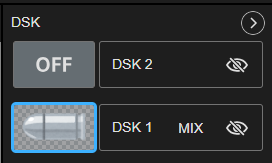
- To apply a mix effect during a DSK transition, right click a [DSK 1]/[DSK 2] layer (excluding the thumbnail area) on the [Layer] pane and select [MIX] in the displayed context menu. “MIX” is displayed on the layer on which [MIX] is selected.
-
Select the image to set in the DSK from the images uploaded to this system or the input from an external graphics system.
When an external graphics system is configured, [HTML5 Input] is displayed as the name.
If the layer selected in step 1 is currently being displayed in the output video, the image composited against the background video is displayed in both the [PVW] pane and [PGM] pane.
Hint
- HTML5 input and NDI input can be used as an external graphics system.
To use HTML5 input, configure the HTML5 URL on the [Graphics System] tab of the [System Settings] screen and select [SDR/8bit/BT.709] in [SDR/HDR] on the [System] tab. [HTML5 Input] is displayed in the list of images.
To use NDI input, configure NDI as an input signal on the [Switcher Input] tab of the [System Settings] screen. [Display Name], configured for NDI input, is displayed in the list of images. - When [OFF] is selected, the image assignment is released. If the layer selected in step 1 was being displayed in the output video, it will be hidden.
- HTML5 input and NDI input can be used as an external graphics system.
-
Make adjustments to the DSK image as required.
For details about adjustment, see “Adjusting Composited Content.”
Hint
- When using [HTML5 Input] as the DSK image, the size and position of the image cannot be adjusted using this system. Adjust the image on the external graphics system side.
TP1001547646
