


Tailoring Operations According to Desired Task
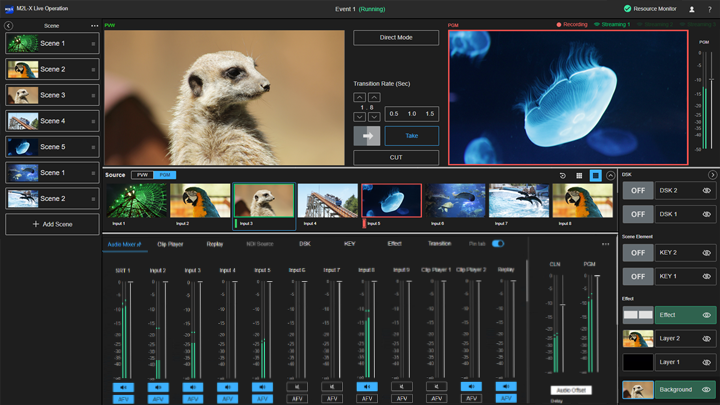
On the [Live Operation] screen, the size of the display area of each pane can be changed and functions can be switched for each user. This allows replay operators to tailor the operating environment to suit their tasks.
Hint
- These preferences are stored for each user. This does not affect other users using the same event.

A: To change the size of the display area of the monitor area
You can change the size of the display area of the monitor area ([PVW] pane/transition control pane/[PGM] pane) by dragging the border lines up/down in the monitor area and [Source] pane.
B: To change the size of the display area of the [Source] pane
You can change the size of the display are of the [Source] pane by dragging the border lines up/down in the [Source] pane and Edit/Control pane.
You can also change the size of the display area of the [Source] pane using  (Increase display area)/
 (Decrease display area). Increasing the size of the display area of the [Source] pane decreases the size of the display area in the [PVW] pane and [PGM] pane, with part of the [PGM] pane and transition control pane hidden.
When only the size of the display area on the [Source] pane is increased

When the thumbnail display size on the [Source] pane is also increased

Hint
- To change the thumbnail display size on the [Source] pane, use
 (Large)/
 (Small).
 - If a replay operator only wants to display thumbnails for instant replay channels, use
 (Display instant replay).
C: To hide the [Scene] pane and [Layer] pane
Press  (Close) in the [Scene] pane or
  (Close) in the [Layer] pane to hide the corresponding pane in the bar along the edge of the screen. This allows you to increase the width of the monitor area, the [Source] pane, and Edit/Control pane.

