


Using the home screen
When [ Mode Settings] is set to [Fixed/Variable], the home screen can be displayed. On the home screen, you can check the recording settings and device settings for movie recording all at once.
Assign [HOME] to the desired key in advance using [ Custom Key/Dial Set.]. In the movie recording mode, pressing the assigned key will display the home screen, and pressing it again will return to the recording screen.
This function can be used when the camera’s system software (firmware) is Ver.7.00 or later.
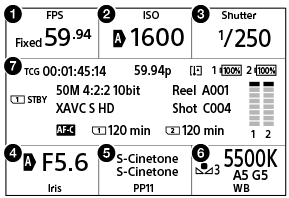
Setting values for movie recording are displayed in areas 1 to 6. Touching each item will take you to the setting screen for that item.
-
FPS (Frame rate)
- You can switch between [Fixed] and [Variable] from this screen. When set to [Variable], you can also set the frame rate.
- ISO/Base ISO
- When [Log Shooting] is set to [Off] or [Flexible ISO], the ISO value is displayed. When [Log Shooting] is set to [Cine EI Quick] or [Cine EI], the EI value of the Base ISO is displayed.
- Shutter speed/Shutter angle
- When [Shutter Mode] is set to [Angle], the shutter angle is displayed.
- Aperture
- By changing the settings in [Home (Lower Left)], you can change the item displayed from [Aperture] to [ND Filter].
-
 Picture Profile/Select LUT
- When [Log Shooting] is set to [Off], [Gamma] and [Color Mode] for [Picture Profile] are displayed. When [Log Shooting] is set to an item other than [Off], the setting value of [Select LUT] is displayed.
- When [Log Shooting] is set to [Off], [Gamma] and [Color Mode] for [
- White Balance
- Other camera settings
- Displays the camera status and setting values. Settings cannot be changed even if touched.
Hint
- To select a setting item from 1 to 6, you can use the control wheel in addition to touch controls. Press the center of the control wheel to highlight an item, and then use the top/bottom/left/right side of the control wheel to move the highlighted position. Press the center button again to confirm your selection.
Switching to the menu screen or Fn menu screen
Just as when switching from the shooting screen to the menu screen or Fn menu screen, to switch from the home screen to the menu screen or Fn menu screen, press the MENU button or Fn button. Pressing either button again will return to the home screen. Also, you can switch to the home screen by pressing the key to which [HOME] has been assigned on the menu screen or Fn menu screen.
The following image is an example of [HOME] assigned to the 5 (Custom 5) button.
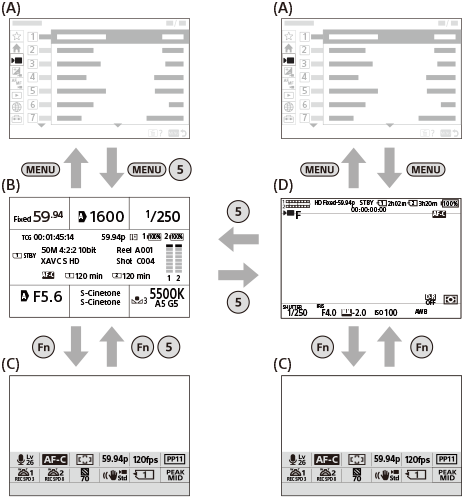
(A): Menu screen
(B): Home screen
(C): Fn menu screen
(D): Recording screen
Note
- The home screen is not displayed in the still image shooting mode.
- You cannot change any settings other than those in the lower left of the home screen.
