


Signing In to C3 Portal
-
Tap [Sign in] on the Home screen.
The [Select Service] screen appears.
Note
- The cloud services available for use will vary depending on the country/region of use settings. Always select the country or region where you will use this app. You can change the country or region of use on the [About the App] screen.
-
Select [C3 Portal] and tap [Next].
Hint
- To subsequently use this app signed in to C3 Portal, before signing in, select [C3 Portal] as the [Default Service] setting.
For details, see “Default Service.”
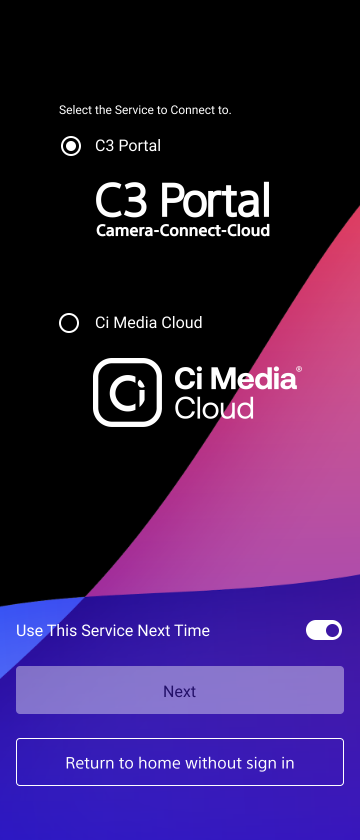
- To subsequently use this app signed in to C3 Portal, before signing in, select [C3 Portal] as the [Default Service] setting.
-
Sign in to C3 Portal.
- To sign in using Professional ID, tap [Sign in].
- To sign in using a custom IdP, tap [Sign in with Custom IdP].
Hint
- When [Auto Sign in from Next Time] is turned on, the user ID and password are saved, and then the saved information is used subsequently when signing in. Switch to the on position, as required.
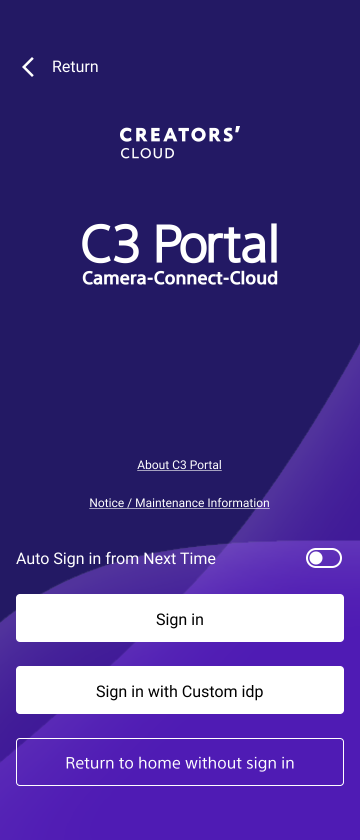
-
Enter your user ID and password on the displayed sign in screen to sign in.
-
For user accounts that require 2-factor authentication, enter the passcode on the displayed 2-factor authentication screen and tap [Authenticate].After signing in, the Home screen appears.
Note
- The passcode will be displayed in the 2-factor authentication app configured when registering a user. For details, visit the following URL.
URL: https://helpguide.sony.net/pro/idm/v1/en/contents/TP0002845600.html - If you move this app to the background during the sign-in process, the process cannot be resumed. In this case, close the browser in the app to return to the Home screen and then sign in again.
- The passcode will be displayed in the 2-factor authentication app configured when registering a user. For details, visit the following URL.
TP1002101599
