


Structure of the Home Screen
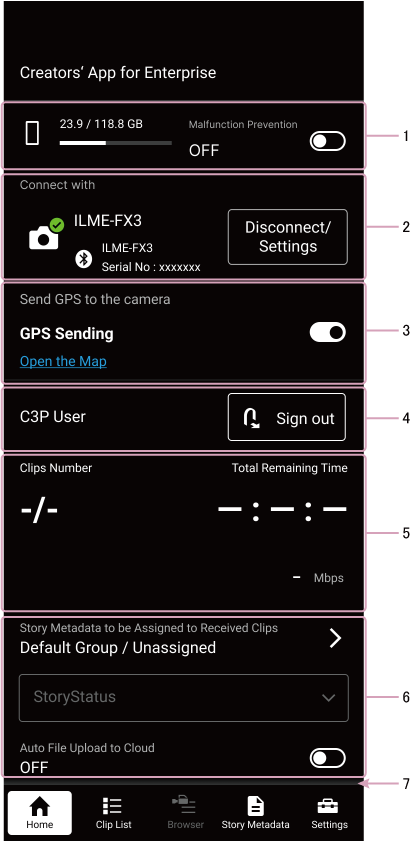
1. Device information display area
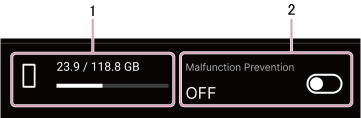
-
Remaining free space display
Displays the remaining free space on the smartphone. -
[Malfunction Prevention] (iOS only)
Displays the enable/disable state of malfunction prevention mode. You can enable/disable malfunction prevention mode using the toggle switch on the right side.
2. Camera information display area
The display differs depending on whether a camera is connected or not.
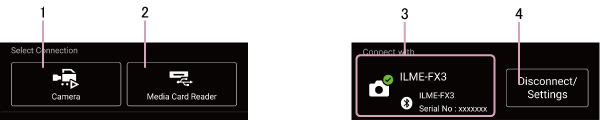
-
[Camera] button (when a camera is not connected)
Press the button to display the camera connection screen. -
[Media Card Reader] button (when a camera is not connected)
Press the button to launch the file browser and import a clip file from a card reader connected to the smartphone. -
Camera information (when a camera is connected)
Displays the camera device name, connection method, model name, and serial number of the connected camera. -
[Disconnect/Settings] button (when a camera is connected)
Press the button to disconnect the camera.
3. GPS information display area (only when cameras that support sending GPS information are connected via Bluetooth)
Displays the status of GPS information transmission to the camera. If the send GPS information function is on but actual transmission is not possible, an error will be displayed. You can tap [Open the map] to launch an external maps application. You can enable/disable the send GPS information function using the toggle switch on the right side.
4. Service information display area
If you are not connected to a cloud service, the [Sign in] button appears. If connected to a cloud service, this displays the user name (C3 Portal or PWA-RXS Network RX Station connections) or file request code (Ci Media Cloud connections) and the [Sign out] button.
5. Upload information display area
-
[Number of Clips]
The numerator displays the number of uploaded clips and the denominator displays the total number of clips to be uploaded. -
[Remaining Time]
Displays the estimated time remaining until all clips have been uploaded. -
Upload clip information
Displays the thumbnail, name, type, and status of the clip being uploaded. When a clip is being uploaded using chunk file transfer, “CHUNK” is displayed instead of the thumbnail.Clip type
-
 (High-Res): Indicates that the clip is a high-resolution file.
 -
 (Proxy): Indicates that the clip is a proxy file.
 -
 (Chunk file): Indicates that the clip is a chunk file. Displayed when connected to C3 Portal or PWA-RXS Network RX Station.
Status display
- [Uploading]: Uploading
- [Upload Completed]: Upload completed
- [Upload Suspended]: Paused due to operation canceled by the user
- [Upload Error]: Error occurred during uploading
-
Note
- Displays the latest upload status. However, if an error occurs when uploading a clip and the next clip starts uploading, the error is not displayed here. If an error occurs, a red dot will appear in the top right of the Clip List icon in the launcher bar.
6. Settings information display area
-
[Story Metadata] (C3 Portal connections only)
Displays the selected story metadata and group. When a clip is transferred from a camera or when a clip is imported from a card reader, the story metadata displayed here is automatically assigned to the clip. Press the icon on the right side to change the selected story metadata. When story metadata is not selected, the name of the group to which to upload clips is displayed. -
Transfer destination preset (PWA-RXS Network RX Station connections only)
Press the icon on the right to display a list of transfer destination presets, from which you can select a transfer destination preset. -
[Upload imported clips automatically]
Displays whether the function for automatically uploading clips to the cloud service is on or off. You can turn auto uploading on/off using the toggle switch on the right side.Hint
- The auto upload on/off switching is also configurable on the [Settings] screen.
- You can change the type of clips to upload automatically on the [Settings] screen using [Upload] > [Media type to upload].
-
[Delete uploaded clips automatically]
Displays whether the function for automatically deleting clip data saved on the smartphone after uploading the clip to the cloud service is on or off. When this function is on, clip data uploaded to the cloud service is deleted from the smartphone. Clips that are deleted automatically have a gray thumbnail and display [Auto Deleted]. The on/off switching is configured on the [Settings] screen.Hint
- When using C3 Portal or PWA-RXS Network RX Station, the setting can be changed. If the setting is changed on PWA-RXS Network RX Station, “Specifying automatic removal from cloud” is displayed in red on the screen.
7. Message
A pop-up message is displayed at the bottom of the screen when you import a clip from a camera to the smartphone.
