


Signing In to PWA-RXS Network RX Station
An endpoint must be created when you sign in to PWA-RXS Network RX Station for the first time.
You can create multiple endpoints, and then subsequently select a saved endpoint and then sign in.
-
Tap [Sign in] on the Home screen.
The [Select Service] screen appears.
Note
- The cloud services available for use will vary depending on the country/region of use settings. Always select the country or region where you will use this app. You can change the country or region of use on the [About the App] screen.
-
Select “Network RX Station PWA-RXS” on the Home screen and tap [Next].
Hint
- To subsequently use this app signed in to PWA-RXS Network RX Station, before signing in, select “Network RX Station PWA-RXS” as the [Default Service] setting.
For details, see “Default Service.”
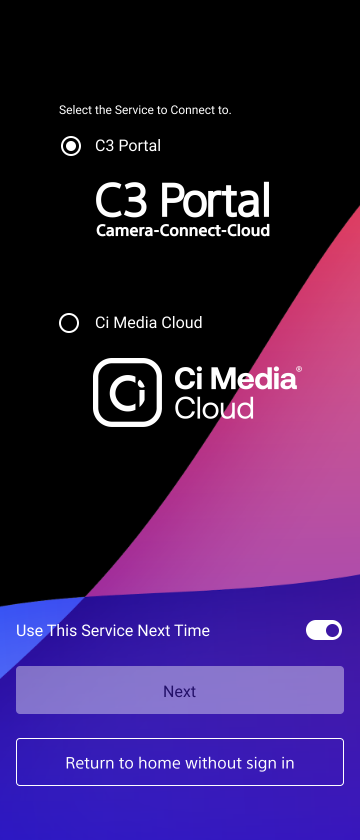
- To subsequently use this app signed in to PWA-RXS Network RX Station, before signing in, select “Network RX Station PWA-RXS” as the [Default Service] setting.
-
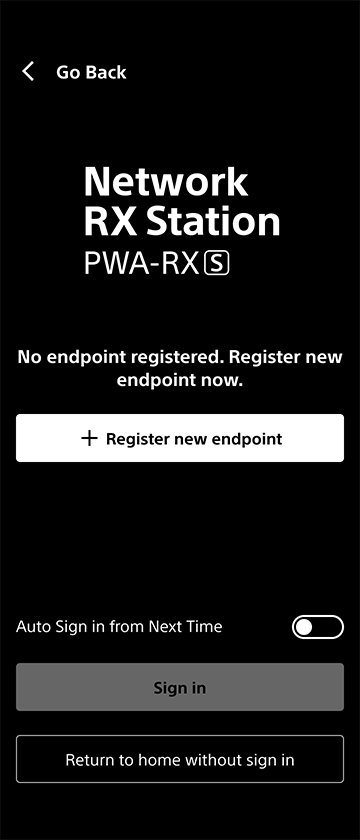
Tap [Add new endpoint].
The [Add new endpoint] screen appears.
-
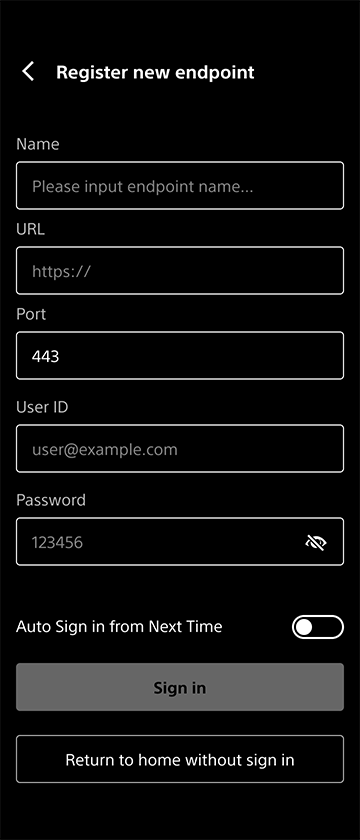
Enter values in [Name], [URL], [Port], [User ID], and [Password] for the endpoint.
Hint
- When [Auto Sign in from Next Time] is turned on, the user ID and password are saved, and then the saved information is used subsequently when signing in. Switch to the on position, as required.
-
Tap [Sign in].
After signing in, the Home screen appears. The created endpoint is saved.
Hint
- To add a second endpoint or more, tap [Add Endpoint] to add a new endpoint as described in step 3.
Signing in using a saved endpoint
-
Tap [Sign in] on the Home screen.
The [Select Service] screen appears.
Note
- The cloud services available for use will vary depending on the country/region of use settings. Always select the country or region where you will use this app. You can change the country or region of use on the [About the App] screen.
-
Select “Network RX Station PWA-RXS” on the Home screen and tap [Next].
-
Select an endpoint for signing in from the [Endpoint] pull-down list and tap [Sign in].
After signing in, the Home screen appears.
Deleting an endpoint
Select the endpoint to delete from the pull-down menu on the PWA-RXS Network RX Station sign in screen, then tap [Delete Endpoint] to delete the selected endpoint.
