


Editing and Deleting the Connection History
Information for cameras that were previously connected using a QR code, Bluetooth, or the remote shooting function are displayed in [Preset connection history] on the [Connection with the camera] screen. You can edit, delete, or duplicate the displayed connection history information.
Note
- The connection history cannot be edited while connected to a camera. Disconnect the camera temporarily, edit the connection history, and then reconnect to the camera.
- If you have updated the firmware of a camera recently, you may not be able to connect to the camera from [Preset connection history]. In this case, reconnect to the camera using a QR code, Bluetooth, or the remote shooting function.
Tap the  (Menu) button on the right of the connection history in [Preset connection history] on the [Connection with the camera] screen to display the menu. You can edit the file transfer and location function settings, change the connection history camera name, delete the connection history, and edit other settings in the displayed menu.
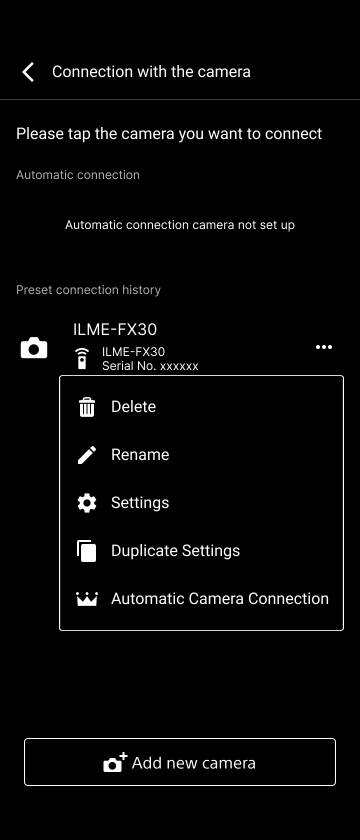
To delete the connection history
Tap  (Delete) to delete the connection history from this app.
To change the connection history camera name
Tap  (Rename) to edit the device name of the connection history.
To edit the connection history settings
Tap  (Settings) to edit the connection history settings.
To duplicate the connection history
Tap  (Duplicate settings) to duplicate the connection history settings.
To enable automatic connection to a camera
Tap  (Reconnect camera automatically) to edit the auto connection setting for a camera in the connection history information. When this app is launched or when the connection to a camera is lost, the app will automatically try to connect to that camera.
