


Structure of the Clip List Screen
Tap  (Clips) in the launcher bar to display the clip list.
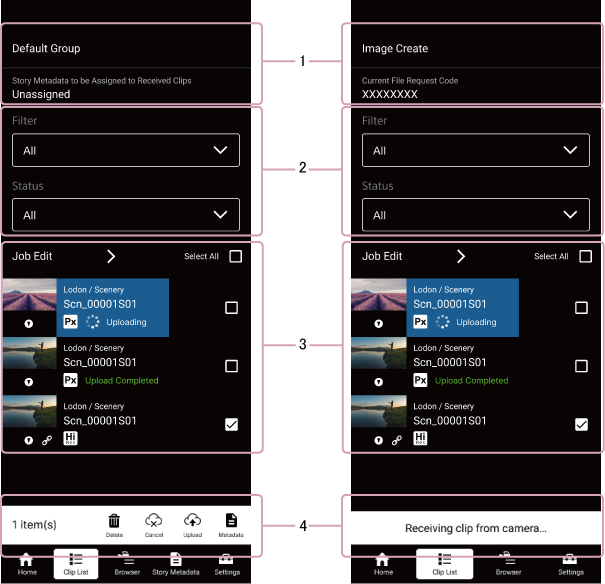
1. Cloud service information display area / Job list edit area
The displayed content varies depending on whether you are connected to C3 Portal, Ci Media Cloud, PWA-RXS Network RX Station, or are not signed in.
-
When connected to C3 Portal
- Group name: Displays the C3 Portal group name of the clip to upload.
-
When connected to Ci Media Cloud
- [Current File Request Code]: Displays the file request code being used for signing in to Ci Media Cloud.
-
When connected to PWA-RXS Network RX Station or not signed in
- Nothing is displayed.
-
 (Job list edit)
Tap to display the [Edit Job List] screen.
The job list icon is not displayed when not signed in.
2. Filtering
-
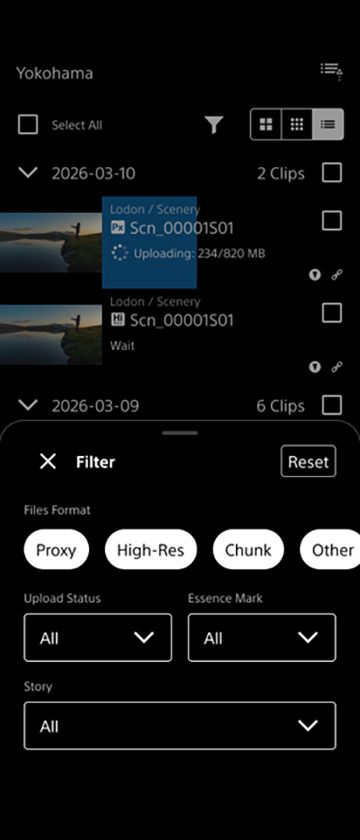
[Filter]
Filters the clip list display according to the following conditions.-
[File Format]: Filter by clip type ([Proxy], [High-Res], [Chunk], [Other]).
- When connected to C3 Portal, connected to PWA-RXS Network RX Station, or not signed in:
[Proxy] / [High-Res] / [Chunk] / [Other] - When connected to Ci Media Cloud:
[Proxy] / [High-Res] / [Other]
- When connected to C3 Portal, connected to PWA-RXS Network RX Station, or not signed in:
- [Upload Status] (when signed in): Filter by clip upload status (all, not uploaded, uploading, uploaded).
- [Essence Mark]: Filter by existence of essence mark (all, with essence mark, without essence mark).
- [Story]: Filter according to the story metadata assigned to the clips (all, unassigned, assignable story metadata).
Note
- Filtering by story metadata is supported for C3 Portal connections only.
- Filtering of clips during chunk file transfer is supported for C3 Portal or PWA-RXS Network RX Station connections only.
-
-
Clip list display select
Switches the clip list display between grid view (small), grid view (large), and list view.
The clips are displayed in groups according to the date they were recorded. -
Filter reset button
Tap to reset the filtering conditions.
3. Clip information display area
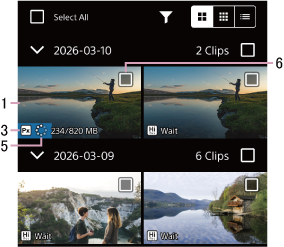
Grid view (large)
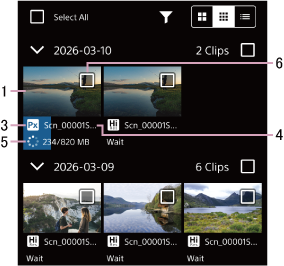
Grid view (small)
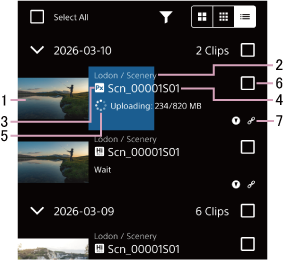
List view
-
Thumbnail view
Displays clip thumbnails. However, when a clip is being uploaded using chunk file transfer, “CHUNK” is displayed instead of the thumbnail.Note
- Chunk file transfer is supported for C3 Portal or PWA-RXS Network RX Station connections only.
-
Group/story metadata display
Displays the group and story metadata assigned to the clip. -
Clip information
-
 (High-Res): Indicates that the clip is a high-resolution file.
 -
 (Proxy): Indicates that the clip is a proxy file.
 -
 (Chunk file): Indicates that the clip is a chunk file. Displayed when connected to C3 Portal or PWA-RXS Network RX Station.
Note
- If the recording time of a chunk file transfer clip is lower than the value specified on the camera, that clip is handled as a normal proxy file and not as a chunk file.
-
-
Clip name
Displays the name of the clip. -
Status display
Displays the upload status and clip information.Upload status
- [Upload Waiting]: Waiting to upload
- [Uploading]: Uploading
- [Upload Completed]: Upload completed
- [Upload Canceling]: Upload canceling
- [Upload Pending]: Upload is temporarily stopped because this app is busy with chunk file transfer from the camera or other reason.
- [Upload Suspended]: Paused due to operation canceled by the user
- [Upload Error]: Error occurred during uploading
-
Selection button
You can tap the selection button of each clip to select a clip. To select multiple clips, tap the selection button of all of the corresponding clips. To deselect clips, tap the selection button of the corresponding clips again.
To select all clips displayed in a list, place a check mark in [Select All] at the top left of the screen. To deselect all clips, clear the check mark in [Select All] at the top left of the screen. -
Clip status
-
 (Essence mark): Indicates the presence of essence marks in a clip.
 -
 (Link): Indicates that the high-resolution file and proxy file are linked. Displayed only for high-resolution files.
 -
 (Metadata unedited): Indicates that required metadata has not been edited. Displayed only when connected to Ci Media Cloud.
-
4. Action bar / message
When a clip is selected, displays icons for controlling clip operations. Icons for operations that cannot be executed are disabled.
Messages are displayed while importing a clip from a camera or copying a file from a card reader.
-
 (Share): Share the selected clip with an external application.
 -
 (Cancel): Stop uploading a clip.
 -
 (Upload): Start uploading the selected clip. If multiple clips are selected, the upload will start from the clip at the bottom of the list.
Note
- When connected to Ci Media Cloud, clips for which required metadata has not been edited cannot be uploaded. Edit the metadata and then upload.
- When sharing chunk files externally, the clip is divided into chunks and then transferred.
Also, muting or stuttering may occur between clip chunks depending on the application used to combine the clip chunks.
-
 (Options): Use to delete the selected clip and to edit metadata.
-
 (Delete): Delete the selected clip.
 -
 (Story Metadata): Assign story metadata to the selected clip when connected to C3 Portal. Tap the icon and select the story metadata in the displayed dialog. Edit the metadata for the selected clip when connected to Ci Media Cloud.
-
TP1000543727
