


Previewing a Clip
Preview screen
Tap a clip on the clip list screen or [Edit Job List] screen to display the preview screen.
You can preview clips and add essence marks on the preview screen.
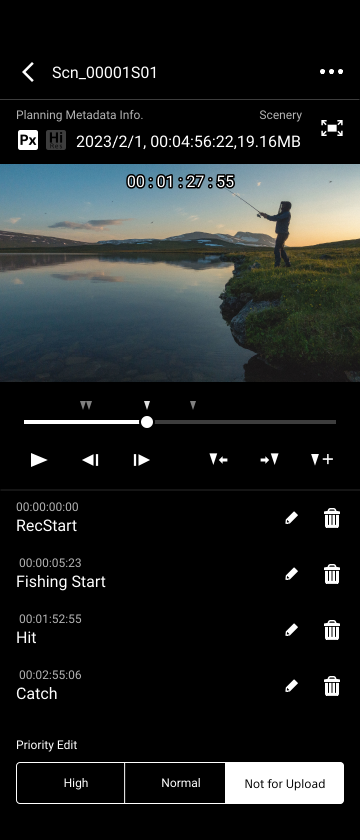
-
Timecode
-
Preview
Control the preview playback using the seek bar and buttons below the preview image.-
 : Play the preview image.
 -

 : Tap to jump the preview image forward/backward by 3 seconds.
 -
 : Tap to change the playback speed.
 -
 : Tap to display the preview image in full screen.
-
-
Clip information
Displays the clip information.- Model name of camera used for recording
- Clip creation date and time
- Duration
-
Proxy and high-res clip information
Displays the information for proxy files and high-res files.- File name
- File size
- Frame size
- Frame rate
- Codec (video codec)
- Audio (audio codec, number of channels)
-
Location
Displays the location information attached to the clip. -
Proxy and high-res upload status
Displays the upload status of clips.
Note
- During chunk file playback, muting or stuttering may occur in the gaps between a split clip.
Adding and deleting essence marks
Swipe [Essence Mark] up at the bottom of the preview screen to add, edit, or delete an essence mark. A list appears if the clip has essence marks. Tap an essence mark in the list to jump to the frame to which that essence mark is attached.
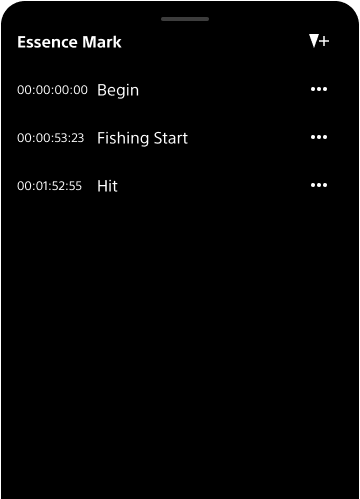
Adding an essence mark
Tap  (Add essence mark) to add an essence mark.
The essence mark is attached to the frame that is displayed at that point.
Deleting an essence mark
Tap  (Options) on the right side of an essence mark to edit or delete the selected essence mark.
Tap  (Delete) to delete that essence mark.
