


Connecting to a Camera via Manual FTP Connection
-
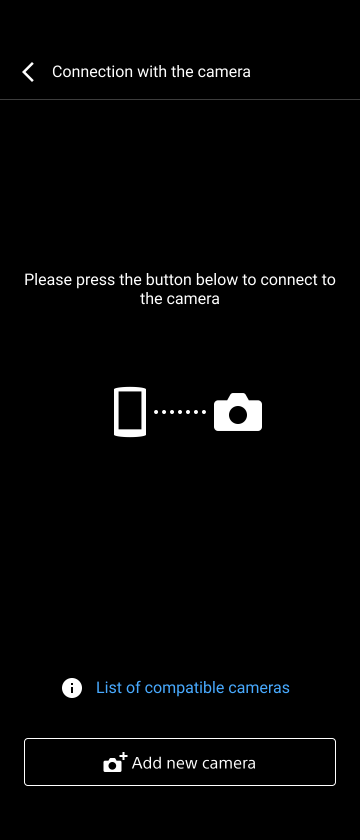
Tap the [Camera] button on the Home screen.The [Connection with the camera] screen appears.
-
Tap [Add new camera].
-
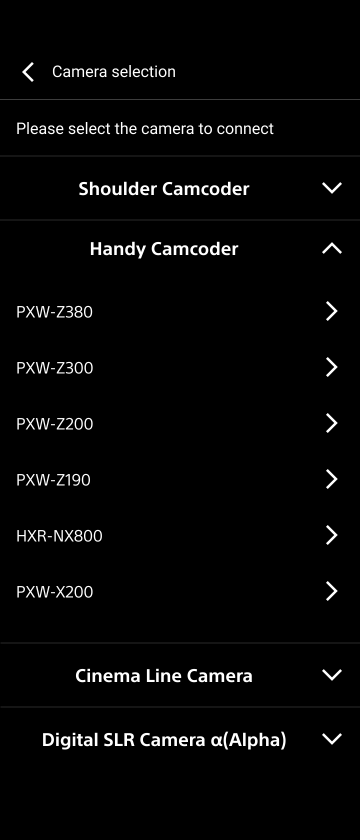
Tap the model name of a camera you want to connect in the list.
-
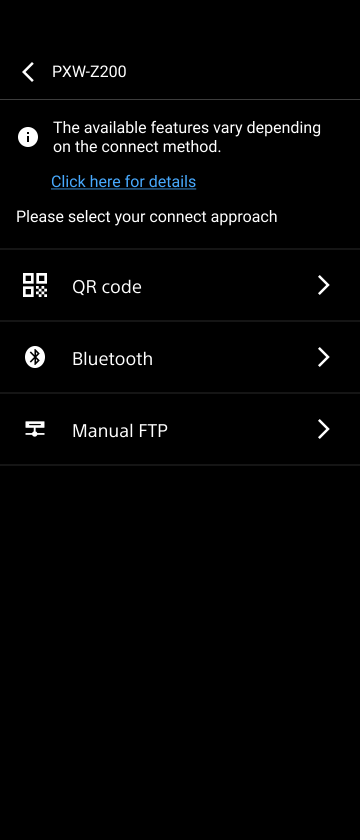
Select [Manual FTP] as the camera connection method.
-
Tap [Next].
A message appears if the USB tethering function is inactive. Connect the smartphone on which this app is installed to a camera using a USB cable, and enable the USB tethering functions of the smartphone and camera.
Also enable the network settings (modem settings) of the camera.
For details about enabling the USB tethering function and modem settings, refer to the operating instructions of each camera.
Note
- After enabling the USB tethering function on a smartphone, it may take a short while to establish a connection with a camera.
-
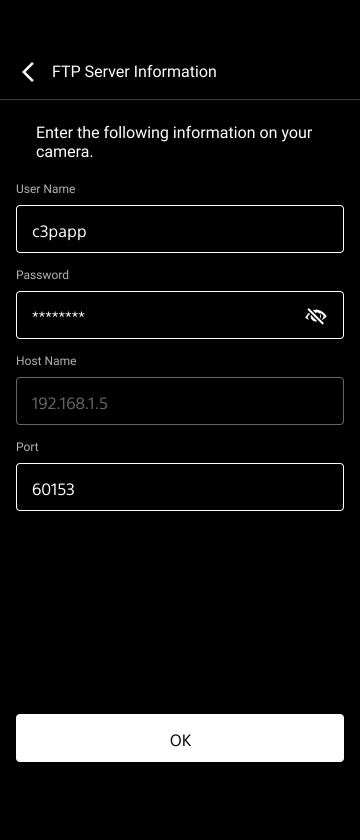
Enter the FTP server information displayed in this app into the camera, and tap [OK] in this app.
Hint
- You can check or change the connection information using [Settings] – [Internal FTP Server].
-
If a message appears, tap [OK].The Home screen appears.
Note
- Connected camera information is not displayed for manual FTP connections. Transfer a clip from the camera to a smartphone to check whether it can be received.
TP1000543723
