


Connecting to a Camera via QR Code Connection
-
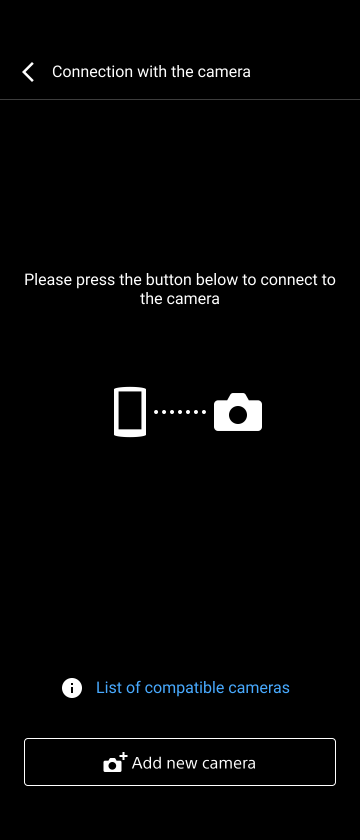
Tap the [Camera] button on the Home screen.The [Connection with the camera] screen appears.
-
Tap [Add new camera].
Hint
- You can also connect by selecting a camera from [Preset connection history]. Cameras that were previously connected using a QR code, Bluetooth, or the remote shooting function are displayed in [Preset connection history].
-
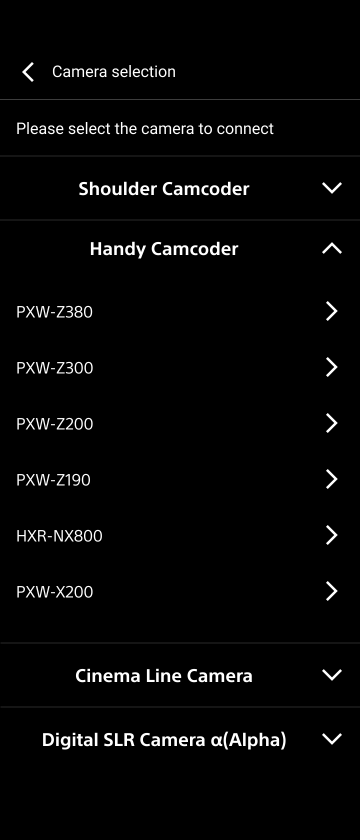
Tap the model name of a camera you want to connect in the list.
-
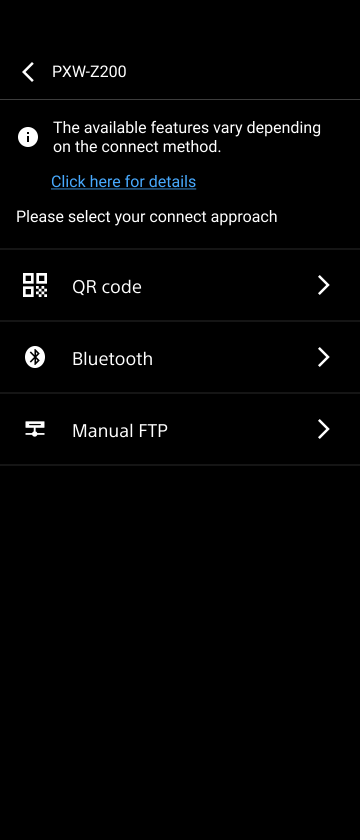
Select [QR Code] as the camera connection method.
-
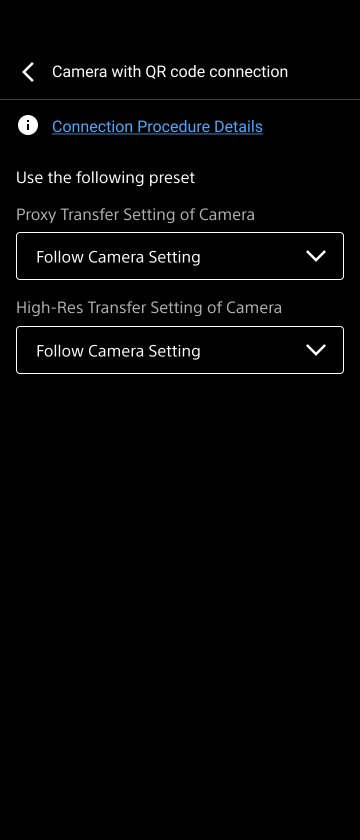
Configure the file transfer settings and background operation function settings (iOS only).
Hint
- When a clip of the type selected here is being shot, the clip will be automatically transferred from the connected camera to this app.
- You can also change the settings on this screen from [Preset connection history] later.
- To transfer proxy files from a camera to a smartphone automatically, you must also enable the proxy shooting function on the camera in addition to the settings on this screen. For details about configuring camera settings, refer to the operating instructions of your camera.
-
Tap [Next].
A message appears if the USB tethering function is inactive. Connect the smartphone on which this app is installed to a camera using a USB cable, and enable the USB tethering functions of the smartphone and camera.
For details about configuring the USB tethering function, refer to the operating instructions of each device.
Note
- After enabling the USB tethering function on a smartphone, it may take a short while to establish a connection with a camera.
-
Operate the camera to display the QR code from the camera menu.For details about how to display the QR code, refer to the operating instructions of the camera.
-
Scan the QR code displayed on the camera using this app.
Note
- Position the QR code within the frame displayed on the scan screen of this app.
- If scanning the QR code takes some time or a read error occurs repeatedly, adjust the brightness of the QR code display screen of the camera and then scan the QR code again.
-
If a message about loading a network file is displayed on the camera, operate the camera to load the file.Connection between this app and the camera is established and the [Finish] button in this app becomes enabled.
-
Tap [Finish] in this app.
The Home screen appears. Check that the information for the connected camera is displayed.
Note
- The Home screen will appear automatically after a while even if you do not tap [Finish].
- If the camera information is not displayed in this app after connection is completed, check that the smartphone and camera are connected properly via USB.
TP1000543722
