


Application screens
This software allows you to manage clips stored on storage media such as media cards, external memory, or HDDs. You can download clips stored in Ci Media Cloud storage to your computer and manage them.
Manage and work with clips mainly by switching between the following two screens.
- [Browse] screen
- [Edit/Details] screen
This section explains the panels and buttons displayed on each screen.
[Browse] screen
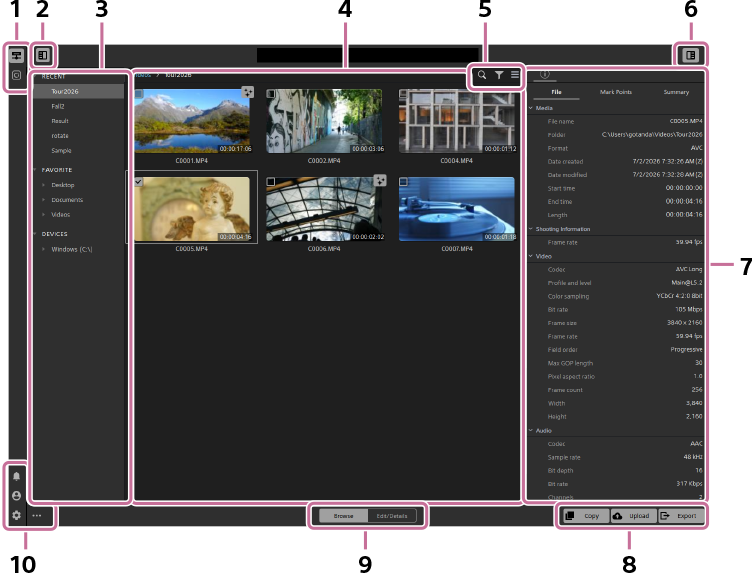
| Number | Classification | Button | Description |
|---|---|---|---|
| 1 | Storage |

|
Click this button to display local/LAN storage. |

|
Click this button to display the storage of Ci Media Cloud. | ||
| 2 | Left panel display switch |

|
Click this button to toggle the display of the left-hand panel on the screen. |
| 3 | Folder tree | ― | The panel shows the folder hierarchy within the storage. |
| 4 | Thumbnail/List panel | ― | Clips are displayed as thumbnails or in a list. |
| 5 | Search/Filter/Field/Toggle view |

|
Click this button to search for clips by file name, etc. |

|
Click this button to set conditions to filter the clips you want to display. | ||

|
Click this button to set the items to display and rearrange their order (only in the list view). | ||
 / /
|
Click these buttons to switch between the thumbnail view and list view. | ||
| 6 | Right panel display switch |

|
Click this button to toggle the display of the right-hand panel on the screen. |
| 7 | Metadata panel | ― | Metadata for the selected clip will be displayed. |
| 8 | Copy/Upload/Export |

|
Click this button to copy the selected clip to the specified folder. |

|
Click this button to log into Ci Media Cloud to upload the file. | ||

|
Click this button to export the clip after making corrections and other adjustments. | ||
| 9 | Mode selector | ― |
Switch between the following two screens. [Browse] screen / [Edit/Details] screen |
| 10 | Notifications/Account/Settings/More options |

|
Click this button to display notifications such as software update information. |

|
Click this button to display account information. | ||

|
Click this button to display software settings. | ||

|
Click this button to display detailed features. |
[Edit/Details] screen
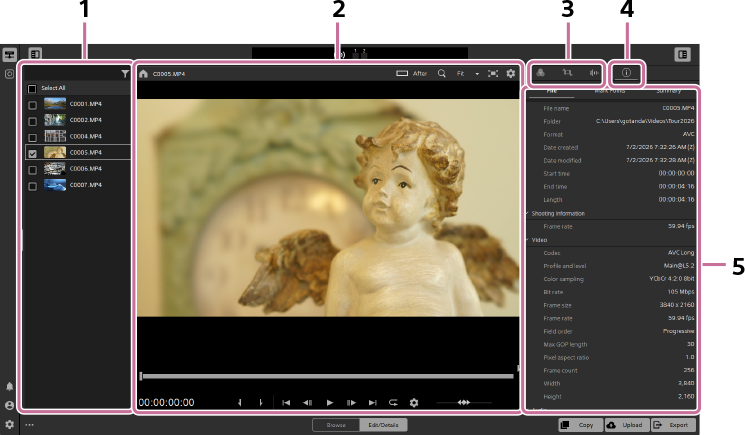
| Number | Classification | Button | Description |
|---|---|---|---|
| 1 | Clip list | ― | The clips in the selected folder will be displayed in a list. |
| 2 | Preview | ― | The clip’s preview settings, preview, trackbar, and transport controls will be displayed. Refer to the following page for details. Preview screen operations |
| 3 | Adjustment buttons |

|
Click this button to adjust exposure values and perform color correction, etc. in the color adjustment panel. |

|
Click this button to adjust image stabilization and perform other corrections in the clip adjustment panel. | ||

|
Click this button to configure the sound separation settings in the sound separation panel. | ||
| 4 | [Metadata] button |

|
Click this button to switch to the metadata display while adjusting the clip. |
| 5 | Adjustment panels | ― | Click the adjustment buttons to display settings for clip adjustment, color adjustment, or sound separation. Click the [Metadata] button to display the metadata. The screen above is an example when metadata is displayed. |
TP1002508886