


Exporting clip information as a list
You can export clip metadata information, etc. as a PDF catalog or a CSV catalog (comma-separated format).
This operation can be performed from any of the following screens.
- [Browse] screen
- [Edit/Details] screen
Creating a PDF Catalog
- Select a clip you want to export to the catalog.
- You can also select multiple clips and create a single catalog.
- Click the following button in the lower left of the screen to select the [Tools] tab.
 : [More options] button
 - Select [Generate PDF catalog].
The [Generate PDF catalog] dialog will open.
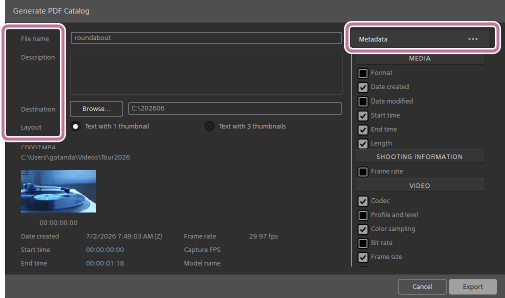
- Configure the catalog information.
- File name:
- This will be the file name of the catalog you create, and it will be displayed at the top of the catalog.
- Description:
- You can enter any information, including a summary of the clip. The description will be displayed below the title of the catalog.
- Destination:
- Specify the destination folder to save the catalog.
- Layout:
- Select how metadata text and thumbnails are displayed.
- Metadata:
-
Select the following metadata values to include in the catalog.
- Media information
- Shooting information
- Video information
- Audio information
- Device information
- Acquisition metadata
You can reset the selected values from the menu that appears by clicking the following button.
 : [Metadata Settings] button
- Click the [Export] button.
The catalog will be created in the destination folder.
Creating a CSV Catalog
- Select a clip you want to export to the catalog.
- You can also select multiple clips and create a single catalog.
- Click the following button in the lower left of the screen to select the [Tools] tab.
: [More options] button
- Select [Generate CSV catalog].
The [Export CSV] dialog will open.
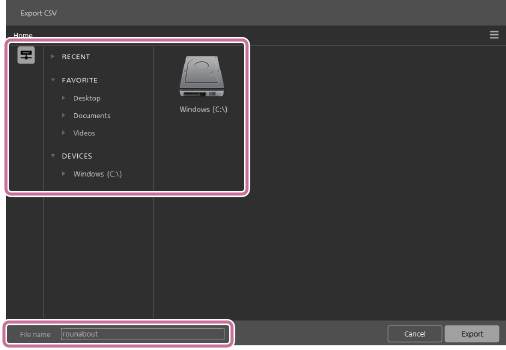
- Specify the destination folder to save the catalog, and then enter the catalog name.
- Click the [Export] button.
The catalog will be created in the destination folder.
TP1002508906